The project workspace
Everything about one project lives on one page: its header with the main actions, and a row of tabs for the tasks, the plan, the people, the money and the paperwork. This page explains the header, what each tab is for, and the Overview and Details tabs.
Before you start
- Open Projects → Projects and click a project's code or name.
- What you can change depends on your role in the project (project manager, team lead, member, observer). Buttons you may not use are hidden.
- Time needed: 5 minutes to find your way around.
The project header
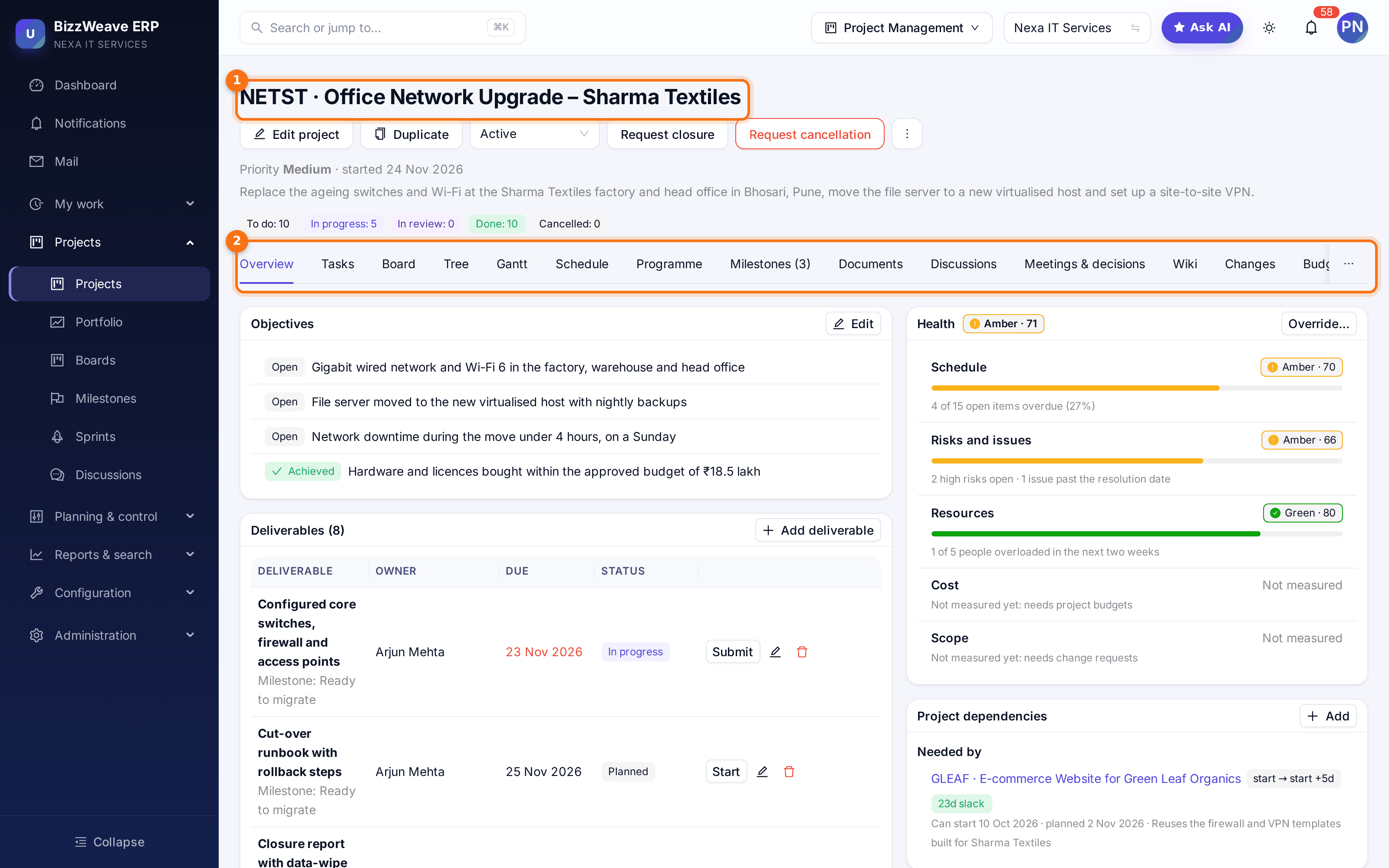
Under the title you find:
| Part | What it does |
|---|---|
| Edit project | Change the name, description, Owner, Priority, Department, Start and End. The end can't be before the start. |
| Duplicate | Copy the project with a new code and start date. See Create a project. |
| Status box | Shows the project status (Draft, Planning, Active, On hold, Completed, Cancelled). Project managers can change it here. |
| Start project, Close project, Cancel project | The formal steps of a project's life, with checks (below). If your organisation wants approval for a step, the button reads Request start, Request closure or Request cancellation. |
| ⋮ (Project actions) | Archive (read-only), Save as template… and Delete project… (administrators only). |
| Priority, dates and description | The priority, the day the project actually started or ended, and the description. |
| Status counts | How many items are To do, In progress, In review, Done and Cancelled. |
The tabs at a glance
| Tab | What you do there | Guide |
|---|---|---|
| Overview | Objectives, deliverables, project files, health, links to other projects and recent activity. | below |
| Tasks | The list of items with filters; add, import and open tasks. | Tasks, board and tree |
| Board | A Kanban board: drag cards between columns. | Tasks, board and tree |
| Tree | The whole hierarchy of phases, tasks and subtasks with roll-ups. | Tasks, board and tree |
| Gantt | The plan as bars on a timeline, with dependencies and a baseline. | Gantt chart and schedule |
| Schedule | Auto-scheduling, dependency types, the working calendar and baselines. | Gantt chart and schedule |
| Programme | A one-page progress view: completion, overdue, blocked, projected finish, workload and critical path. | Gantt chart and schedule |
| Milestones | Milestones with gates, criteria and approvals. | Milestones |
| Documents | Controlled project documents with versions. | Documents and wiki |
| Discussions | Project channels and threads. | Discussions |
| Meetings & decisions | Meeting notes, action items and the decision log. | Meetings and decisions |
| Wiki | Pages of project knowledge. | Documents and wiki |
| Changes | Change requests to scope, dates or budget. | Change requests |
| Budget | Budget, costs and commitments. | Budget |
| Risks & issues | The project's risk register and issue log. | Risks and issues |
| Phases & planning | Phases, recurring tasks and resource allocation. | Gantt chart and schedule |
| Team & access | Who is on the project and with which project role. | Team and settings |
| Settings | Workflow, approvals for start and closure, and other project settings. | Team and settings |
| Recently deleted | Tasks deleted in the last while, with Restore. | below |
| Details | Owner, start and end at a glance. | below |
Open a tab from a link
Each tab has its own address, for example …/projects/…?tab=gantt. Copy the address from the browser to send a colleague straight to the Gantt chart.
The Overview tab

Objectives
What success looks like, in a few lines. Project managers click Edit, type each objective (for example "Network downtime during the move under 4 hours, on a Sunday"), tick the box when it is achieved and click Save. Use Add objective for more lines (up to 30).
Deliverables
The things the project hands over, such as a design document or configured equipment. Each has an Owner, a Due date, an optional Milestone and a status: Planned → In progress → Submitted → Accepted (or Rejected).
- Click Add deliverable, enter the Name, Description, Owner, Due date and Milestone, and click Save.
- The owner clicks Start when work begins and Submit when it is ready.
- A project manager (not the owner) clicks Accept or Reject. An accepted deliverable shows who accepted it.
A due date in red means the deliverable is late.
Project files
Charters, contracts and plans. Click Upload (max 25 MB) to add a file; click a file name to download it.
Health
The ERP scores the project from 0 to 100 and shows Green, Amber or Red (in the project list these appear as On track, At risk and Off track). The score is built from five parts:
| Part | Measured from |
|---|---|
| Schedule | Open items that are overdue, for example "4 of 15 open items overdue". |
| Risks and issues | High risks still open and issues past their resolution date. |
| Resources | Whether people on the project are overloaded in the next two weeks. |
| Cost | Spending against the budget (shown as Not measured until the project has a budget). |
| Scope | Change requests (shown as Not measured until there are any). |
A small chart shows how the score moved in the last 90 days. If you know better than the formula, click Override…, choose the Status, give a reason and, if you like, an end date. Your override is shown everywhere with your reason and is recorded in the audit trail. Remove override returns to the calculated value.
Project dependencies
Links to other projects, for example "This project waits for" another one to finish. See Portfolio.
Activity
Everything that happened in the project, newest first: tasks created, status changes, comments, escalations. Click Load more for older entries.
Start, close or cancel a project
Project managers move a project through its life with the buttons in the header.
- Start project (shown while the project is in Draft or Planning) makes it Active. If the settings say so, a start baseline of the plan is saved.
- Close project (shown while Active or On hold) first shows a checklist.
- Cancel project stops the project. You must give a reason. Switch on also cancel its open items to cancel the remaining tasks too.

The closure checklist marks each point green or red, for example All deliverables accepted, No open items, Committed costs settled, Risks closed and Lessons learned written (a wiki page titled "Lessons learned"). Points marked advice, such as Timesheets approved, don't block closing. If only open items stop you, switch on Cancel the remaining open items when the project closes. While any red point remains, the window shows Finish the red items first and you can't confirm.
A closed project becomes read-only; its managers can reopen it. A closing baseline is kept.
If your organisation requires approval, the button sends the request (with your optional note) to the approvers and the header shows, for example, Closure waiting for approval with a Withdraw button. Approvers decide it in Approvals. Which steps need approval is set on the project's Settings tab.
The Details tab
Shows the project's Owner, Start and End in a small table. Use Edit project in the header to change them.
Recently deleted tasks
When someone deletes a task, it disappears from all lists but is not lost. Open the Recently deleted tab to see deleted tasks with who deleted them and when; "(+3 subtasks)" means the task's subtasks were deleted with it. Click Restore to bring a task (and its subtasks) back. Deleting a task keeps its time, comments and files.
Common questions
I can't see the Budget or Risks & issues tab.
Some tabs appear only for people with the matching permission, for example permission to read budgets. Ask your administrator.
Why does the project show Amber when everything is on time?
Health combines five parts. Open risks or an issue past its date lower the Risks and issues part even when the schedule is fine. Look at the reasons under each part on the Overview tab.
What is the difference between Archive and Close?
Close project is the normal end of a project: it checks that the work is finished, keeps a closing baseline and sets the status to Completed. Archive simply makes a project read-only and moves it to the Archived list, whatever its state.