Mailboxes (IMAP/SMTP)
Connect your firm's existing mailbox, such as accounts@ or info@, so the team can read and answer it inside BizzWeave ERP. The mail stays with your provider; BizzWeave ERP shows recent mail and sends replies through it.
Before you start
- Needs the Administrator role.
- Have ready: the mailbox address and its password, or an app password if the account uses two-step sign-in; the IMAP and SMTP server names (for common providers they are filled in for you).
- Turn on IMAP access in your mail provider's settings, if it needs that.
- Time needed: about 10 minutes.
Microsoft 365 / Outlook
Microsoft 365 and Outlook.com mailboxes aren't supported yet, because Microsoft no longer allows password sign-in for mail programs.
The mailbox list
Open Administration → System → Mailboxes.
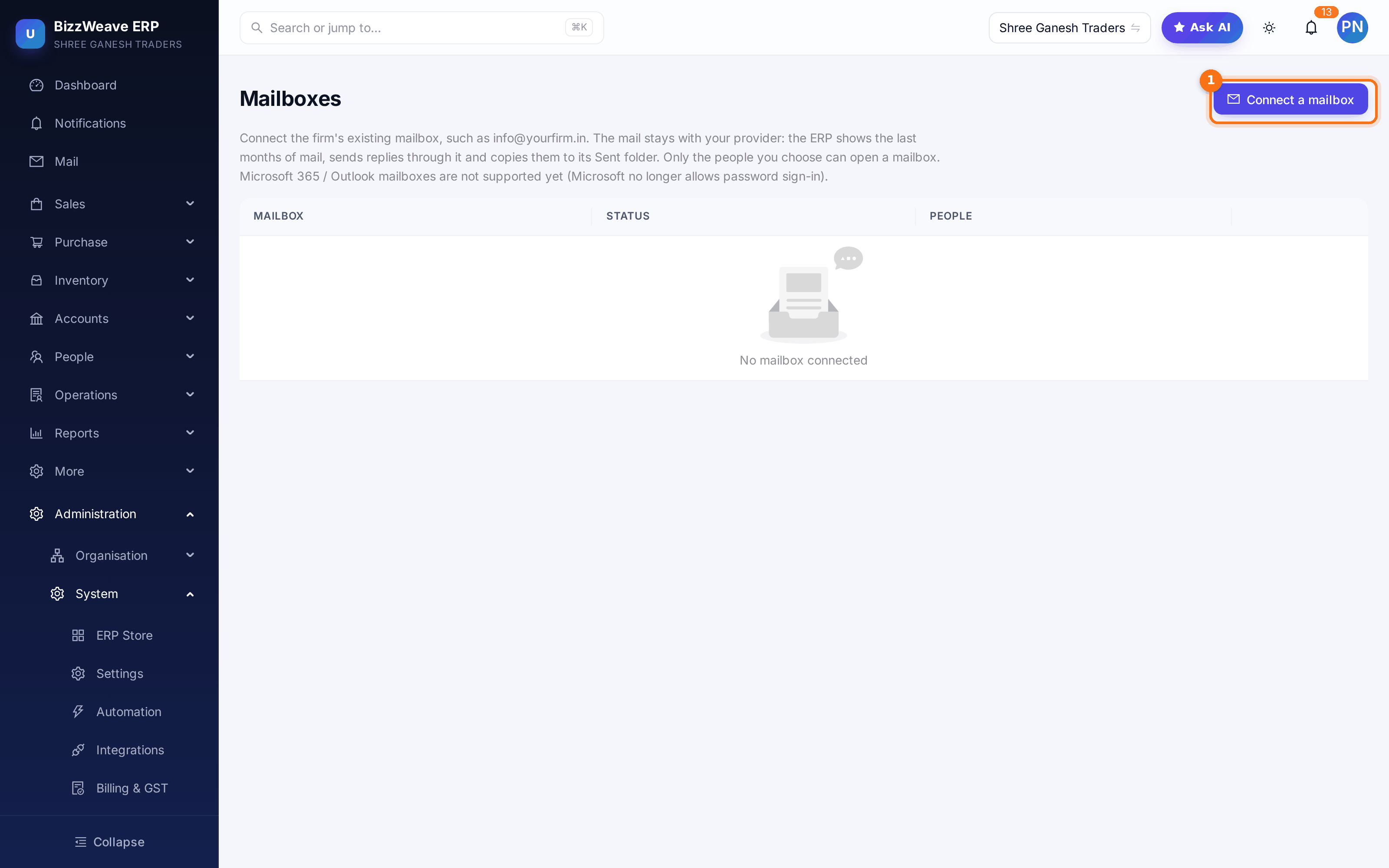
| Status | Meaning |
|---|---|
| Connected | Working. Checked shows when mail was last fetched. |
| Needs reconnecting | The provider refused the password; the error is shown in red. Click Edit and enter the new password. |
| Turned off | You switched the mailbox off with its On/Off switch. |
Connect a mailbox
- Click Connect a mailbox.
-
Choose the Mail provider: Zoho Mail (India), Gmail / Google Workspace, GoDaddy Professional Email, Hostinger or Other (cPanel, your host). The server settings are filled in for you, with a tip for that provider.

Connecting accounts@ with Zoho Mail (India). -
Fill in the details:
Field What to enter Example E-mail address (required) The mailbox's address. [email protected] Name shown to recipients The sender name on replies. Shree Ganesh Traders – Accounts Username Usually the e-mail address; leave empty to use it. Password or app password (required) The mailbox password, or an app password. Gmail always needs an app password (Google Account → Security → App passwords). IMAP server, Port, Security For reading mail. Filled in by the provider choice. imap.zoho.in, 993, SSL SMTP server, Port, Security For sending mail. smtp.zoho.in, 465, SSL Show mail from the last (days) How far back to fetch, 1 to 365. Default 90. 90 -
Click Test connection. A green message says Connected and names the Sent folder replies are copied to. A red message explains whether reading (IMAP) or sending (SMTP) failed.
- Under Who can use this mailbox, choose the people. For each, tick can send to let them reply and write e-mails; untick it for read-only access.
- Click Connect. The message says the last months of mail arrive in a few minutes.
What happens next
The chosen people see Mail in the menu with this mailbox. See Mail.
Change, switch off or disconnect
- Edit: change the settings, the password (leave it empty to keep the old one) or the people.
- On/Off switch: stop fetching and sending without removing anything.
- Disconnect: removes the mailbox and the mail copied into BizzWeave ERP. The mail at your provider is not touched.