Resources: workload, allocations and time off
See at a glance who has room and who is overloaded, plan people onto projects, record leave and holidays, and keep everyone's working hours and skills up to date. The ERP uses this to warn you before you overload someone.
Before you start
- Open Planning & control → Resources in the Project Management menu.
- Everyone who can see resources sees the Workload, Allocations and Time off & holidays tabs. To create allocations or move work between people you need a role such as Project Manager, Department Manager or an administrator. The People & skills tab needs permission to read employee profiles, and Settings is for administrators.
- Time needed: 5 minutes to read the workload; about 2 minutes per allocation or leave entry.
How the ERP works out workload
Three numbers drive every screen on this page:
| Term | What it means |
|---|---|
| Capacity | The hours a person can work in a period: hours per working day × FTE on each of their working days, minus organisation holidays and their time off. FTE (full-time equivalent) is the share of a full-time job, for example 0.8 for four days a week. |
| Planned work | The remaining effort of the person's open items, spread evenly over the working days between the item's start and due dates. Work that is already overdue counts on today. Items without a due date are shown as undated and are not placed in any week. |
| Allocated | Time booked for the person on a project with an allocation (for example "Arjun, 60% on the network upgrade"). |
Give items an estimate
Planned work comes from each item's Estimate (or Remaining effort). An item without an estimate adds nothing to the workload, so a person can look free when they are not.
The workload heat map
The Workload tab shows one row per person and one column per week (or day). Each cell is coloured by how full the person is:
| Colour band | Meaning (default settings) |
|---|---|
| Underutilised | Planned work under 50% of capacity. |
| Available | 50–79%. There is still room. |
| Optimally utilised | 80–100%. |
| Overloaded | Over 100%. The person has more work than hours. |
| Not working | No capacity, for example a week of leave (a dashed cell). |
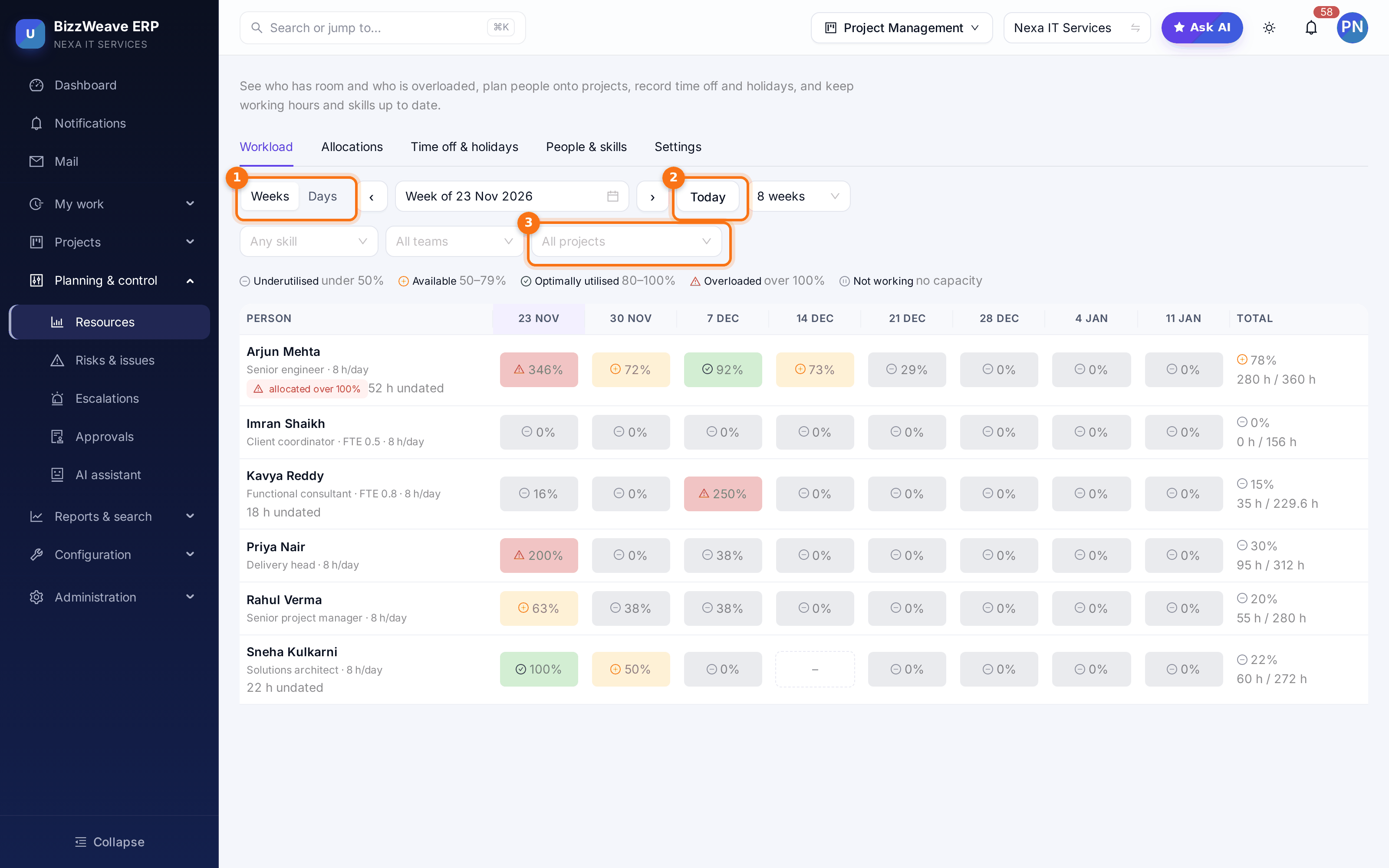
What you can do here:
- Move in time: use ‹ and ›, pick a week in the date box, and choose how many weeks (4, 8, 12 or 26) or days to show.
- Filter: All departments, Any skill, All teams and All projects narrow the list. Filters appear only when there is something to filter by (for example skills exist).
- Read the person column: it shows the designation, FTE and daily hours. A red allocated over 100% tag means their project allocations add up to more than their time; 52 h undated means open work without a due date.
- Read the Total column: the overall band and planned hours / capacity hours for the whole range.
See what is behind a cell
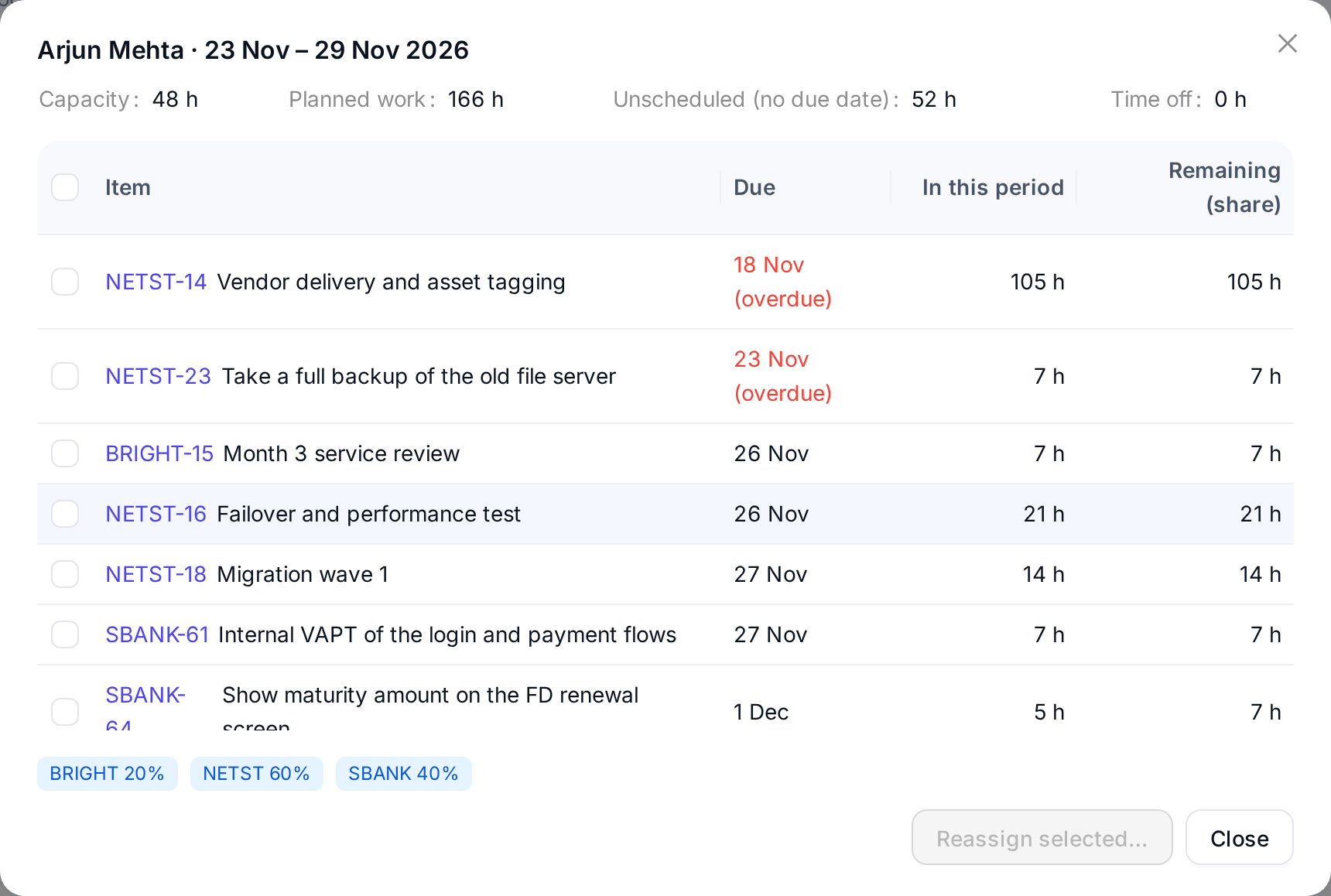
Hover over a cell to see capacity, planned work, allocations and time off for that week. Click it to open the person's items for the period.
Move work to someone with room
If someone is overloaded, hand some of their items to a colleague:
- Click the overloaded cell to open the person's items for that period.
- Tick the items you want to move.
- Click “Reassign N selected…”, choose the person in To, and add a Reason (shown to the approver if approval is needed).
- Click “Reassign”. The items move at once. If your organisation requires approval for reassignments, you see Waiting for approval and the items move when the person's line manager approves it in Approvals.
Find the right person for an item
In any work item, click Find people by skills and availability under the assignee. The ERP ranks people by the item's Required skills, their free hours until the due date and their current load, and lets you Assign one directly.
Allocations: plan people onto projects
An allocation books part of a person's time for a project over a period, for example "Kavya Reddy, 50% on the ERP rollout from 24 August to 30 November". Allocations help you plan before the detailed tasks exist.

-
Click “New allocation” at the top right of the Allocations tab.

The New allocation window. -
Fill in the form.
Field What to enter Example Person Who you are booking. Required. Arjun Mehta Project The project they work on. Required. NETST · Office Network Upgrade – Sharma Textiles Amount Either % of their time or Hours per day. 60 % Period First day and (optionally) last day. Leave the end empty for an open-ended booking. 5 Oct 2026 → 9 Dec 2026 Role on the project A free-text role, shown in the planner. Network engineer Planning: Tentative (what-if) Tick to try out a plan. Tentative bookings are hatched and do not count as booked capacity or need approval. — Note Anything the approver or the team should know. Needed for both migration waves -
Click “Save”. If the booking takes the person above 100%, the ERP saves it and shows a warning such as “Arjun Mehta would be allocated 120% of their time in the week of 12 Oct 2026”. Your administrator can change this to refuse such bookings instead (see Settings).
To change or remove an allocation, click its row in the planner, edit it and click Save, or click Remove.
What happens next
If approval is switched on, the allocation shows awaiting approval until the person's line manager (or a resource manager) approves it in Approvals. A rejected allocation shows rejected; open it, change it and save to send it again.
Time off and holidays
The Time off & holidays tab has two cards: everyone's leave on the left and the organisation's public holidays on the right. Nobody's capacity counts on a holiday or on their days off, so the heat map shows them as Not working.

Record leave
-
Click “Add time off”.

The Add time off window. -
Choose the person. Leave Person empty to record your own leave. Only resource managers can record leave for someone else.
- Choose the Type: Leave, Sick, Training or Other. Only you and resource managers see the type and the note; everyone else sees Away.
- Pick the Days (first and last day).
- Part of the day only: tick it and enter the Hours off per day for, say, half days.
- Add a Note if useful and click Save.
To change or remove an entry, click it in the list (you can edit your own entries; resource managers can edit anyone's).
Add an organisation holiday
If you are allowed to edit holidays, the Organisation holidays card has a small form at the top. Pick the date, type the name (for example Diwali) and click Add. Use the year box at the top right of the card to see last year or next year. To remove a holiday, click the bin icon and confirm.
Project calendars are separate
Organisation holidays reduce people's capacity. Each project's schedule keeps its own working calendar (set in the project's Schedule tab, see Gantt and schedule).
People and skills
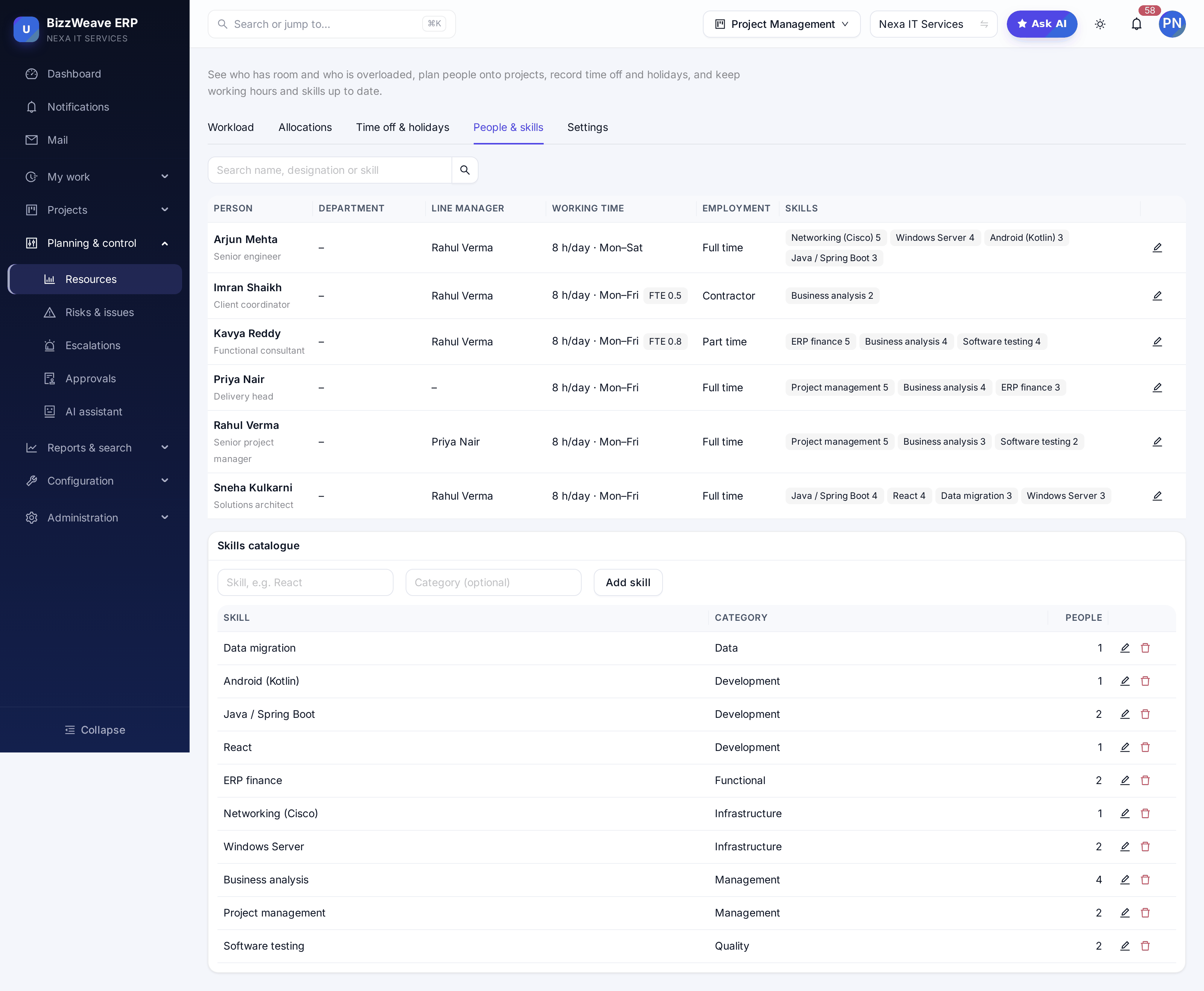
The People & skills tab lists everyone with their department, line manager, working time, employment type and skills (with a level from 1 to 5).
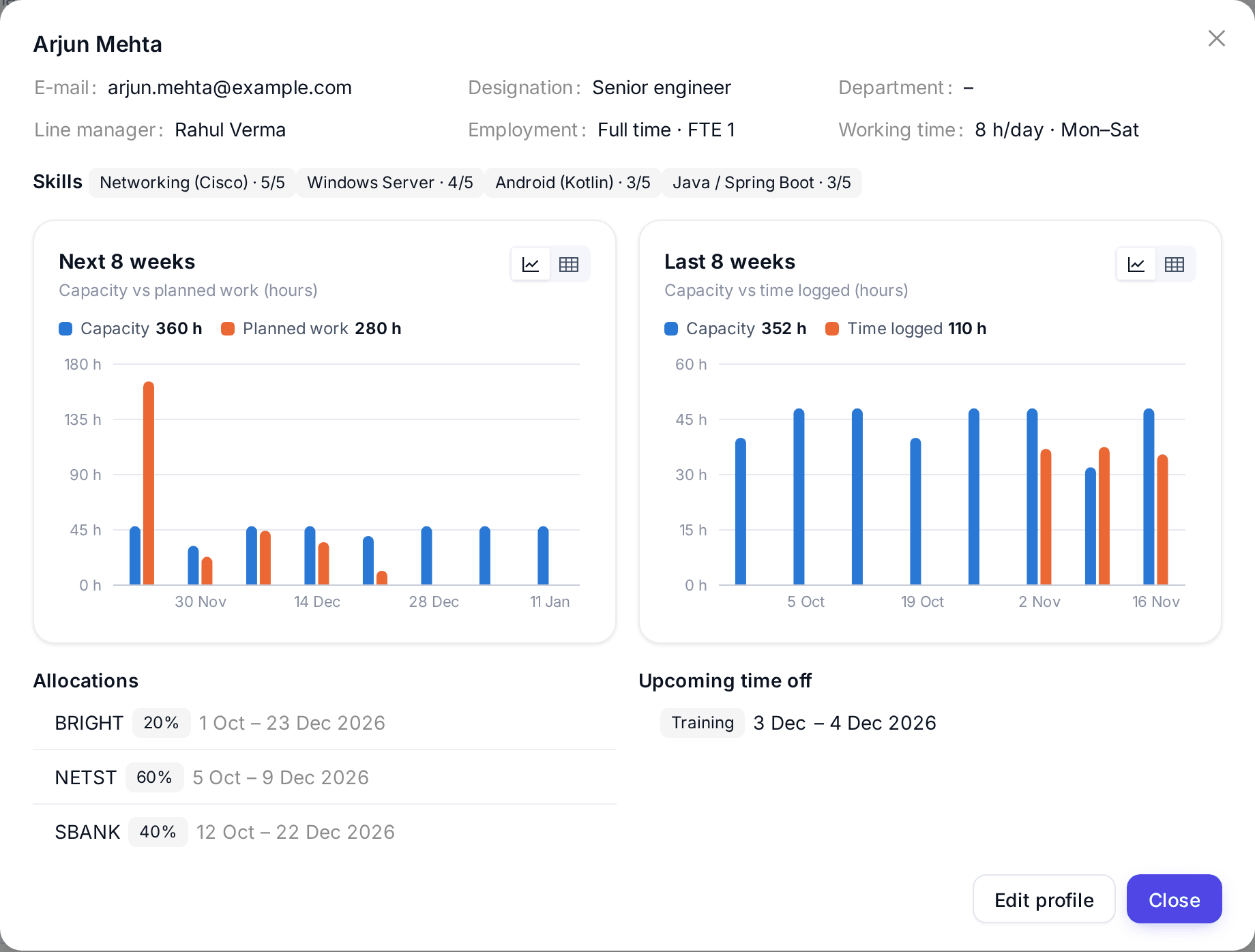
Click a person to see their summary: the next 8 weeks (capacity against planned work), the last 8 weeks (capacity against time logged), their allocations and upcoming time off.
Edit a working profile
Click the pencil icon on a person's row (or Edit profile in their summary).

| Field | What it does | Example |
|---|---|---|
| Designation | Job title shown under the name. | Functional consultant |
| Department | Used by the department filters. | — |
| Line manager | Approves this person's allocations and work moved to them, when approval is on. | Rahul Verma |
| Location, Employment | Informational: Full time, Part time, Contractor or Intern. | Hyderabad, Part time |
| FTE | Share of a full-time position, from 0.05 to 1. | 0.8 |
| Hours per working day | Capacity per day = hours × FTE. | 8 |
| Working days | Tick the days the person works. | Mon–Fri |
| Skills | Click Add skill, choose the skill and set the level with the stars. | ERP finance ★★★★★ |
| Cost and bill rates | Restricted: only people allowed to manage rates see it. Each rate has a start date, cost per hour, bill per hour and currency; click Add rate. Rates feed project budgets. | 1 Apr 2026, ₹1,000 / ₹2,200 |
Click Save.
The skills catalogue
Below the list, the Skills catalogue holds the skills you can give people. Type a skill (for example React) and an optional category, then click Add skill. Use the pencil to rename a skill and the bin to delete it (it is removed from every profile and item that uses it). The People column shows how many people have the skill.
Settings
Administrators see a Settings tab.
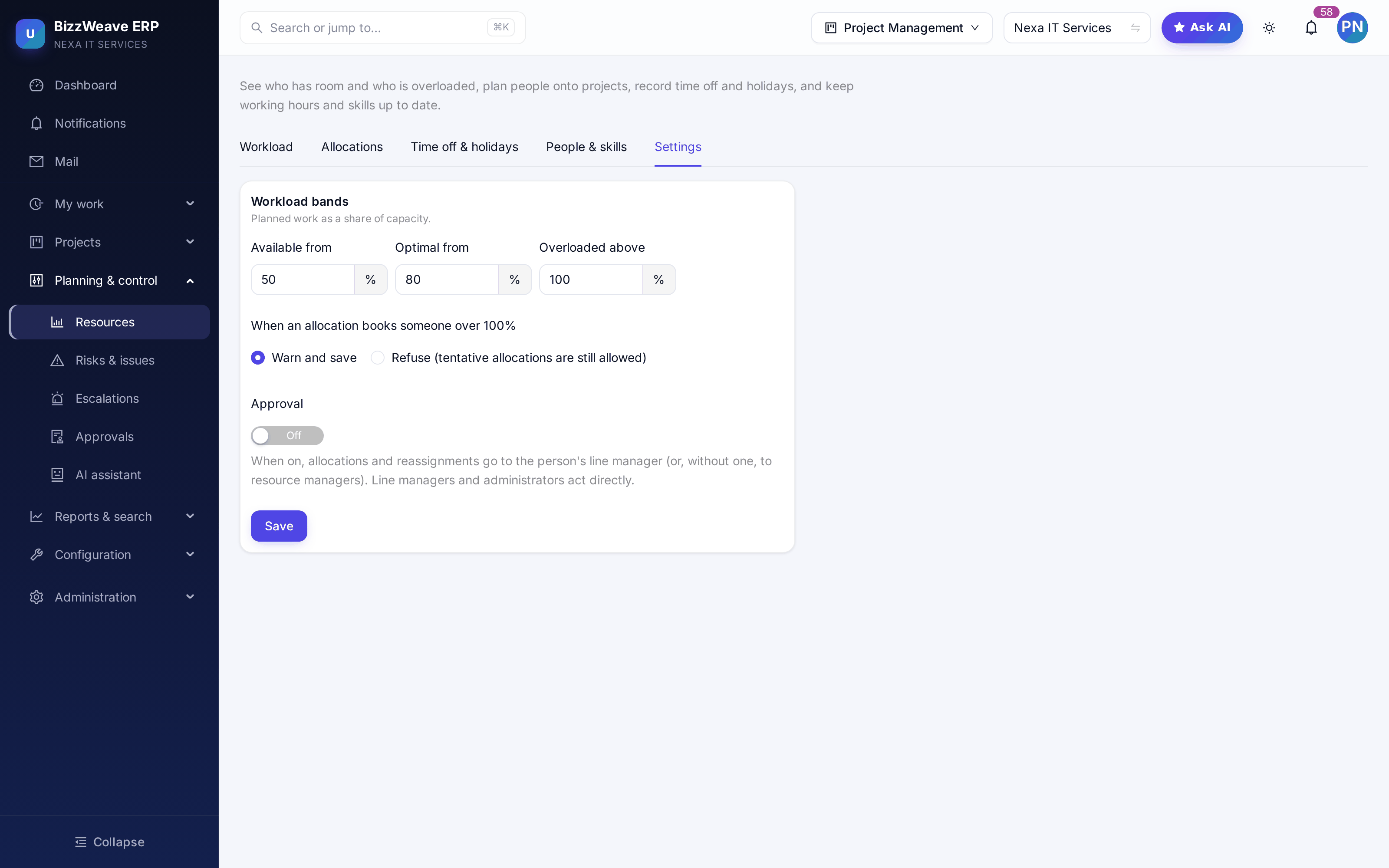
| Setting | What it controls |
|---|---|
| Workload bands | Where Available starts, where Optimal starts and above which share someone is Overloaded. |
| When an allocation books someone over 100% | Warn and save, or Refuse (tentative allocations are still allowed). |
| Approval | When Required, allocations and reassignments go to the person's line manager (or, without one, to resource managers). Line managers and administrators act directly. |
Click Save.
Common questions
Someone shows 0% although they are busy
Their items probably have no Estimate, or no due date. Open the items and enter an estimate; items without a due date appear as undated hours next to the person's name instead of in a week.
Why is one week above 300%?
Overdue work is counted on today, so a long item that is already late puts all its remaining hours in the current week. Re-plan the item (new dates) or move part of it to someone else.
What is the difference between an allocation and an assignment?
An assignment puts a person on a specific item. An allocation books a share of their time for a whole project and period, before or alongside the detailed items. The heat map compares planned work (from items) with capacity; the allocation planner compares bookings with capacity.
Can team members see each other's leave reasons?
No. Only the person and resource managers see the type and note. Everyone else sees Away.