Ticket views
The tabs at the top of the service desk are ready-made views of the tickets. Use them to see your own work, the tickets in trouble, or every ticket ever raised.
Before you start
- The IT team sees all the views. Employees see only My requests.
The views
| View | Shows | Use it to |
|---|---|---|
| Open queue | Every New, Open, In progress or Pending ticket. | Triage and share out the work. |
| Assigned to me | Open tickets assigned to you. | Plan your own day. |
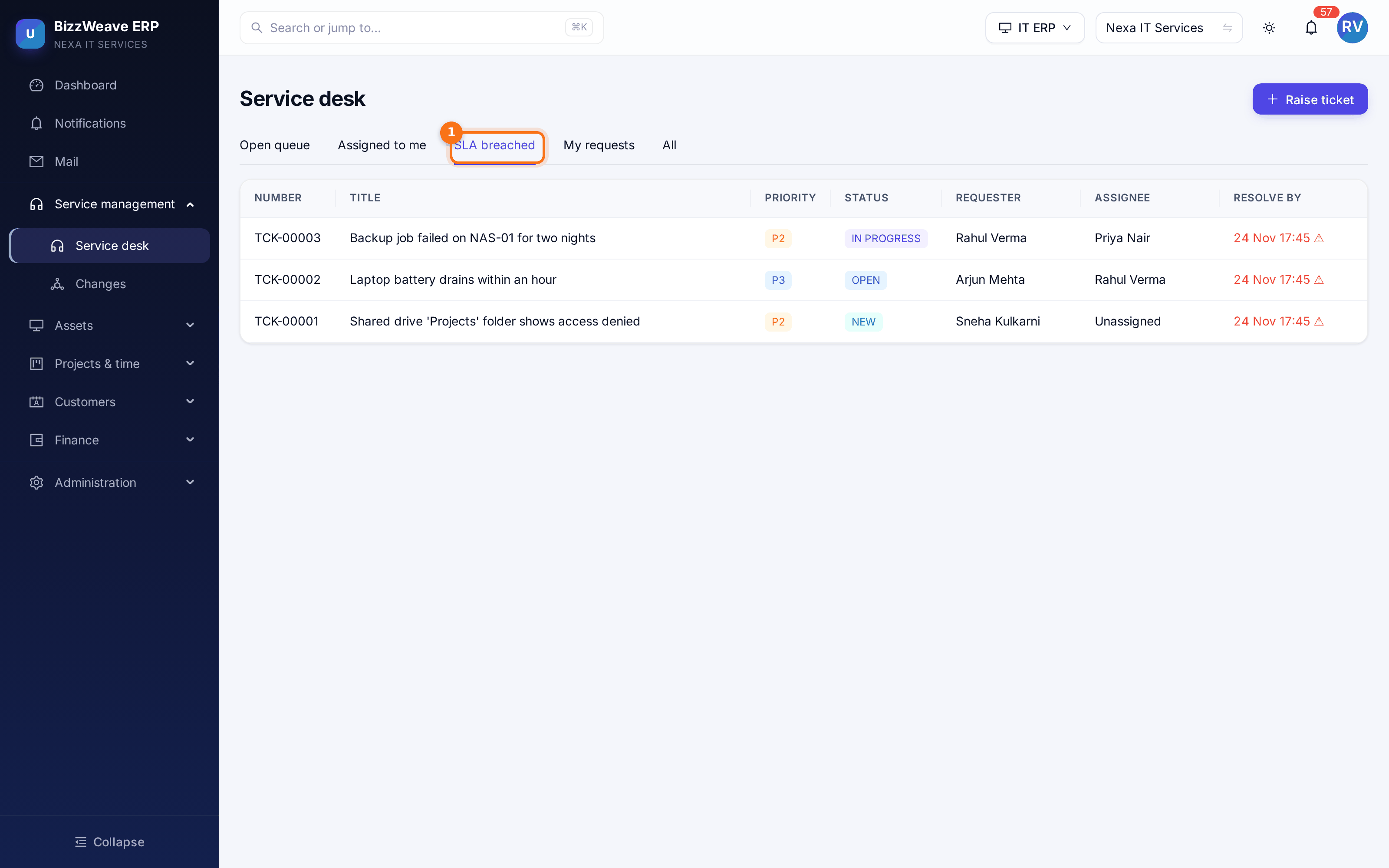
| SLA breached | Open tickets that missed a response or resolution target. | Deal with the most urgent problems first. |
| My requests | Tickets you raised yourself, open or resolved. | Follow your own problems. |
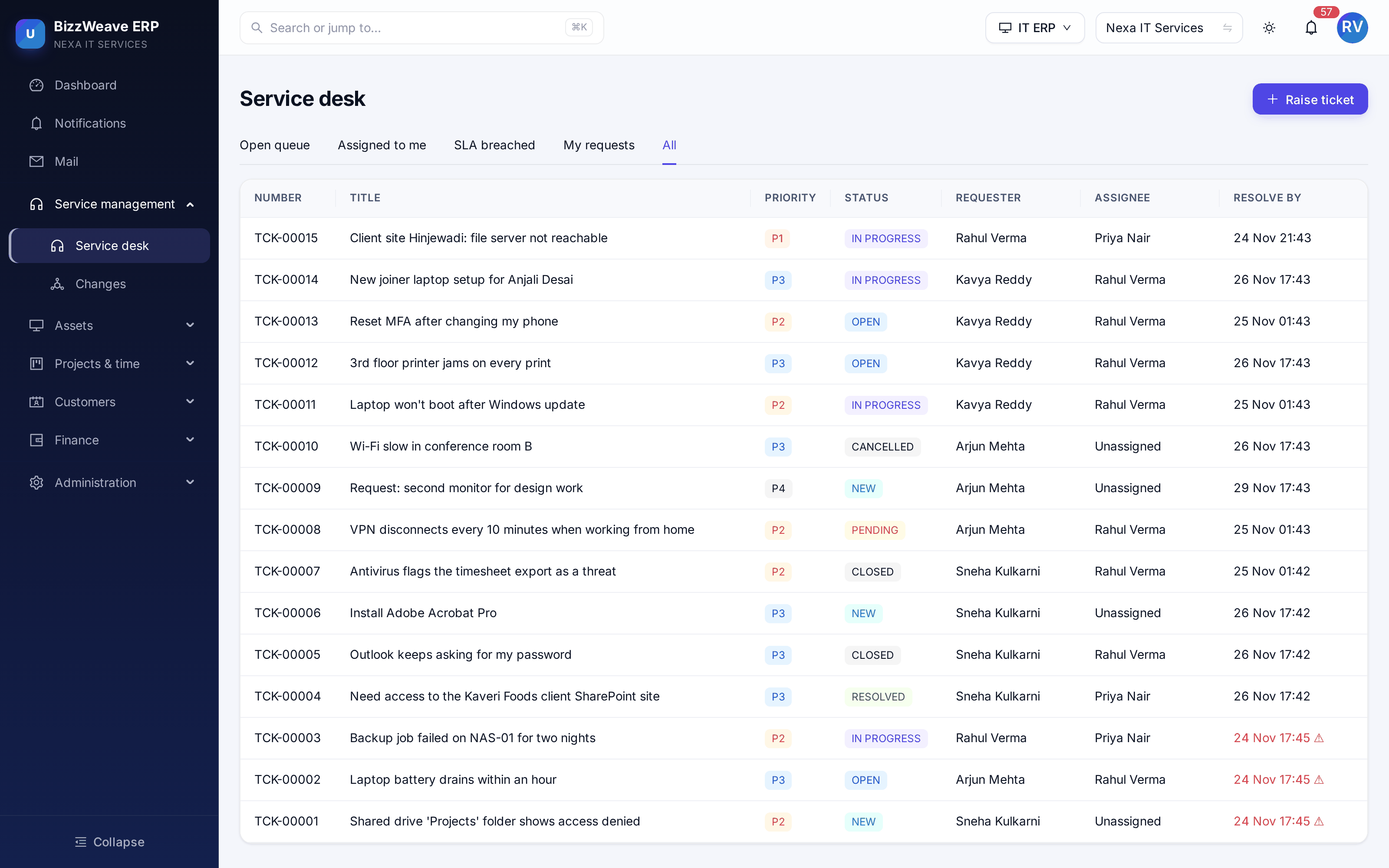
| All | Every ticket in every status, including resolved, closed and cancelled ones. | Look up an old ticket. |
| Categories & SLA | The SLA and category settings (administrators only). | See SLA targets. |
Each list is sorted with the newest ticket first and refreshes every minute.
Read the list
| Column | What it shows |
|---|---|
| Number | The ticket number, for example TCK-00012. Numbers are given in order and never reused. |
| Title | The requester's short description. |
| Priority | P1 (red) to P4 (grey). |
| Status | See statuses. |
| Requester | Who raised it (IT team only). |
| Assignee | Who works on it, or Unassigned. |
| Resolve by | The resolution deadline. Red when missed; ⚠ when the ticket has been escalated. |
Common questions
How do I find a ticket by number?
Open All and look for the number; the newest tickets are at the top. There is no search box on the service desk yet. If your organisation has turned on the AI assistant, click Ask AI and ask, for example, "Find ticket TCK-00012" or "Open tickets about VPN": it lists the matching tickets with links.
Can I filter by priority or category?
Not yet. Use SLA breached and Assigned to me to focus on what matters; the Priority column shows P1 tickets in red.