Project dashboards
A project dashboard puts the figures and charts you check every week on one page. Start from the built-in dashboard, make it yours, choose the widgets and their size, and share it with your colleagues.
Before you start
- Open Reports & search → Project dashboards. You need permission to read project reports.
- Each widget shows only the projects and reports you are allowed to see.
- Time needed: about 5 minutes to build a dashboard.
The dashboard page

The first time you open the page you see the Built-in dashboard: key figures, the task completion trend, the portfolio, next milestones, your open work and deadline adherence. Click Make it mine to copy it and change it.
The buttons at the top:
| Button | What it does |
|---|---|
| Dashboard list 1 | Switch between Mine and Shared with me dashboards. |
| Open first | Makes this dashboard the one that opens when you come to the page. It then shows Opens first. |
| Edit 2 | Change the name, sharing and widgets (only your own dashboards). |
| Copy to mine | On a dashboard someone shared with you: makes your own copy that you can change. |
| Deletes your dashboard. | |
| New 3 | Creates an empty dashboard. |
Build a dashboard
- Click “New” (or Make it mine on the built-in dashboard).
-
Name the dashboard, for example My delivery dashboard.

Each row is one widget: its size, period and project. -
Add widgets. Choose one in Add a widget and click Add. You can add up to 24.
Widget Shows Key figures The key-figure tiles from Project reports. Next milestones Milestones due in the next 30 days. My open work Your next open items, with due dates. Risk exposure Open risks per project (if you can read risks). Any report The chart of a report, for example Project performance or Resource utilisation. -
Set each widget.
- Size: Small (a third of the width), Medium (half) or Full width.
- Period: Last 7, 30, 90, 180 or 365 days.
- Project: All projects or one project.
- Use the ↑ and ↓ arrows to change the order, and the bin icon to remove a widget.
- Share it (optional). Turn on Share with everyone who reads project reports.
- Click “Save”.
What happens next
The dashboard opens with your widgets. Click Open first if you want it to be the one that opens by default.
Dashboards shared with you
Dashboards that colleagues share appear under Shared with me in the dashboard list, with a Shared tag next to the title.
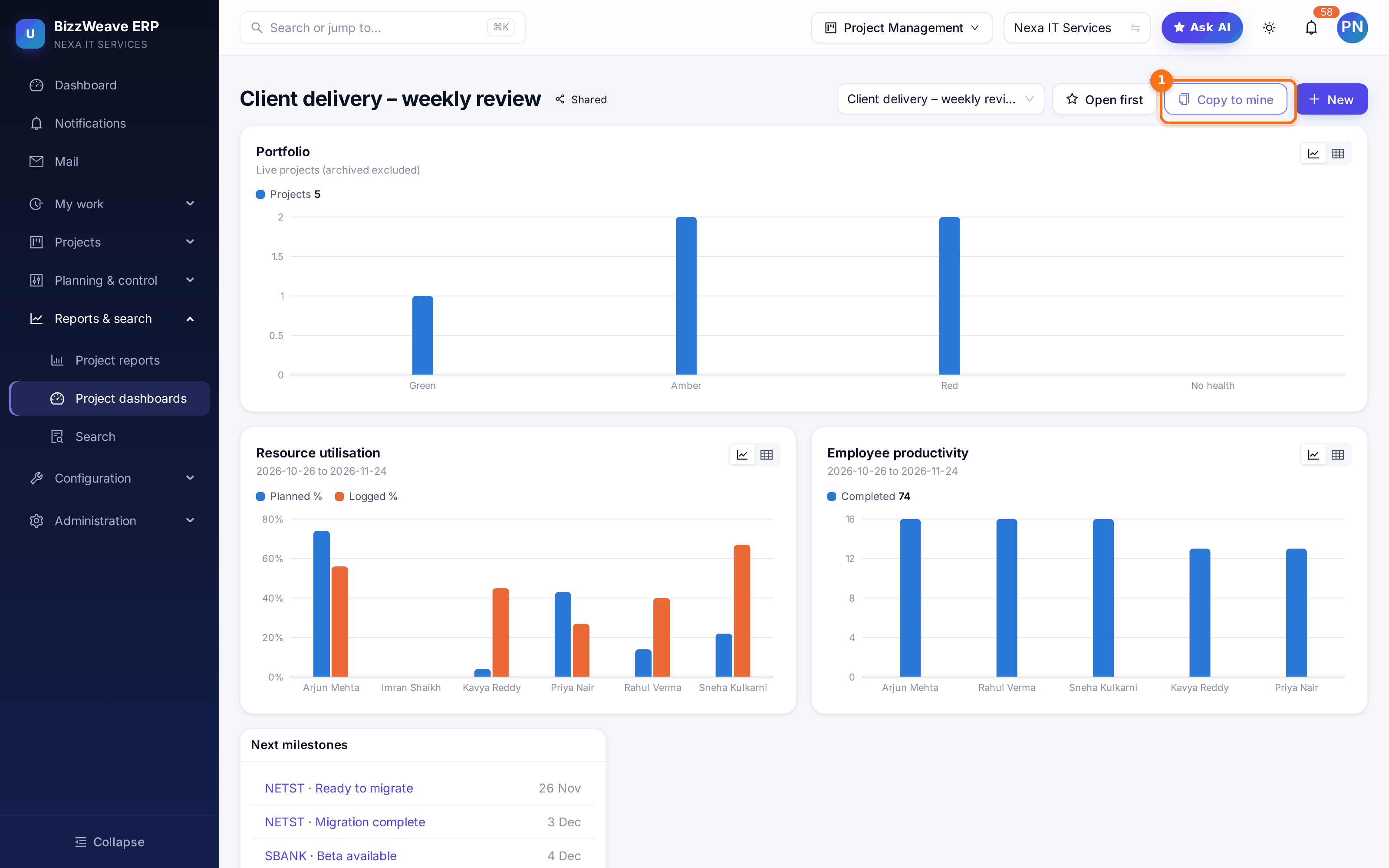
You can view a shared dashboard and make it open first, but only its owner can edit it. To change it for yourself, click Copy to mine.
Common questions
Is this the same as the Dashboard at the top of the menu?
No. Dashboard at the top of the menu opens Project home, which is the same for everyone. Project dashboards are the ones you build yourself.
A widget says it has nothing to show
There is no data for its period or project. Choose a longer period, or All projects, in Edit.
Do my colleagues see my numbers on a shared dashboard?
No. Every viewer sees the widgets with their own access: projects they can't open are left out.