Find your way around
Every page in BizzWeave ERP has the same frame: a menu on the left and a bar along the top. Learn its parts once and you can find anything.
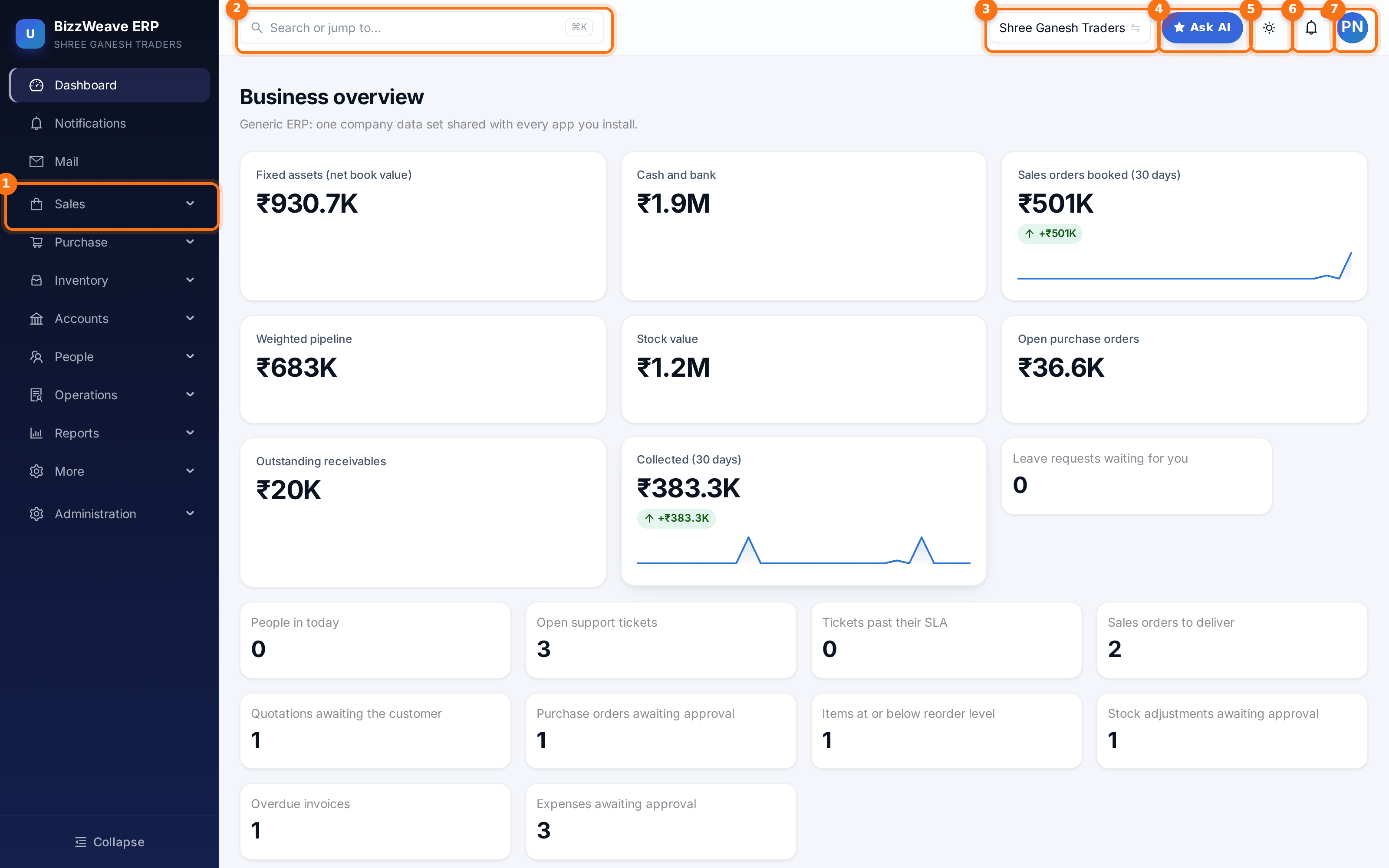
The parts of the screen
| Part | What it does | |
|---|---|---|
| 1 | Menu | Lists every area you can use. At the top are Dashboard, Notifications and Mail. Below them are the modules of the current category, such as Sales or Inventory: click a heading to open it and see its pages. Administration is at the bottom. Click Collapse at the very bottom to make the menu narrow. |
| 2 | Search or jump to… | Opens the command palette: type part of a page name and press Enter to go there. Shortcut Ctrl+K (Cmd+K on a Mac). See Search and the command palette. |
| 3 | Organisation | Shown when you belong to more than one organisation. Pick another one to switch. See Switch organisation. |
| 4 | Ask AI | Opens the AI assistant, which answers questions from your organisation's data. Shortcut Ctrl+J (Cmd+J). See Ask AI. |
| 5 | Theme | Choose System, Light or Dark colours. System follows your computer's setting. |
| 6 | Notifications | The bell. The red number counts unread alerts. Click it to see the latest ones. See Notifications. |
| 7 | Your initials | Opens your account menu: notification preferences, API tokens, account security, create another company and Sign out. |
The category switcher
When your organisation uses more than one category, a category switcher also appears in the top bar, to the left of the organisation name. See below.
Switch to another category
A category is a set of modules for one kind of business, such as Project Management or IT ERP. If your organisation uses more than one, you choose which one the menu shows.
- Click the category switcher at the top of the page. It shows the name of the current category, for example Project Management.
-
Pick another category from the Switch category list.
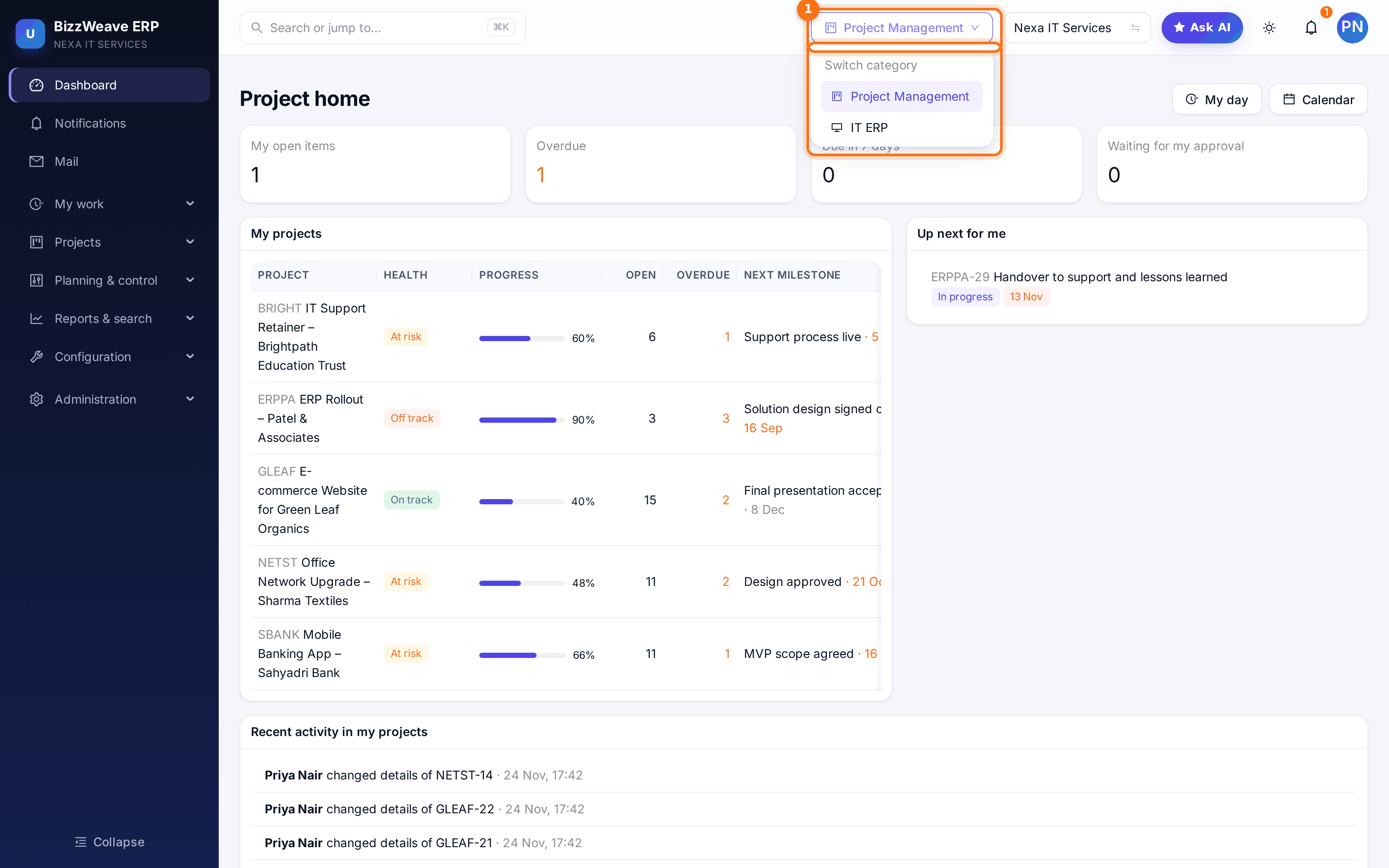
Nexa IT Services uses two categories. 1 The switcher lists only the categories your organisation has installed and that your role can use. The organisation's default category is marked default. -
The menu on the left changes to that category's modules and the Dashboard shows that category's home page. Your data stays the same: a customer you added in one category is the same customer in another.
BizzWeave ERP remembers your choice
The category you last used opens the next time you sign in, separately for each organisation. Until you choose one, you start on the organisation's default category, which an administrator sets under Administration → System → Settings. See Organisation settings.
Links switch category for you
If you open a link or a search result that belongs to another category, the menu switches to that category automatically.
The “More” group
Some shared pages, such as Companies, CRM, Projects, Tasks or Timesheet, belong to no category you have installed. They are not hidden: they appear under More, just above Administration.
The Administration menu
At the bottom of the menu, Administration holds the pages that set up your organisation. It has two groups:


- Organisation: Branches, Departments, Members, Roles & permissions.
- System: ERP Store, Settings, Automation, Integrations, Billing & GST, AI assistant, Mailboxes, Notification settings and Audit trail.
Most people see only some of these. A member, for example, sees the Organisation pages and ERP Store and Settings to read, but cannot change them. See Roles explained and the Administration guides.
Your account menu
Click your initials 7 to open it.
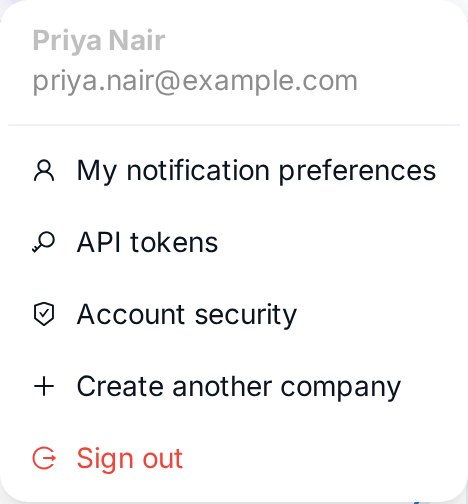
| Item | What it does |
|---|---|
| My notification preferences | Choose how each kind of alert reaches you. See Notification preferences. |
| API tokens | Personal keys for scripts that use the BizzWeave ERP API. See Your profile and account security. |
| Account security | Turn two-step sign-in on or off. See Your profile and account security. |
| Create another company | Set up a new, separate organisation. See Create your company. |
| Sign out | Ends your session on this browser. |