Items & services
The list of everything you buy and sell: goods you keep in stock and services you bill. Each item carries its HSN or SAC code, prices and default GST rate, so quotations, orders and invoices fill in by themselves.
Before you start
- Where: Inventory → Items & services.
- Everyone can see the list. Administrators and managers can add and change items.
- Have the HSN code (goods) or SAC code (services) and the GST rate ready. Your accountant or the GST portal can confirm them.
- Time needed: about 1 minute per item.
HSN (Harmonised System of Nomenclature) codes classify goods, and SAC (Services Accounting Code) codes classify services. A GST invoice needs one on every line.
The item list
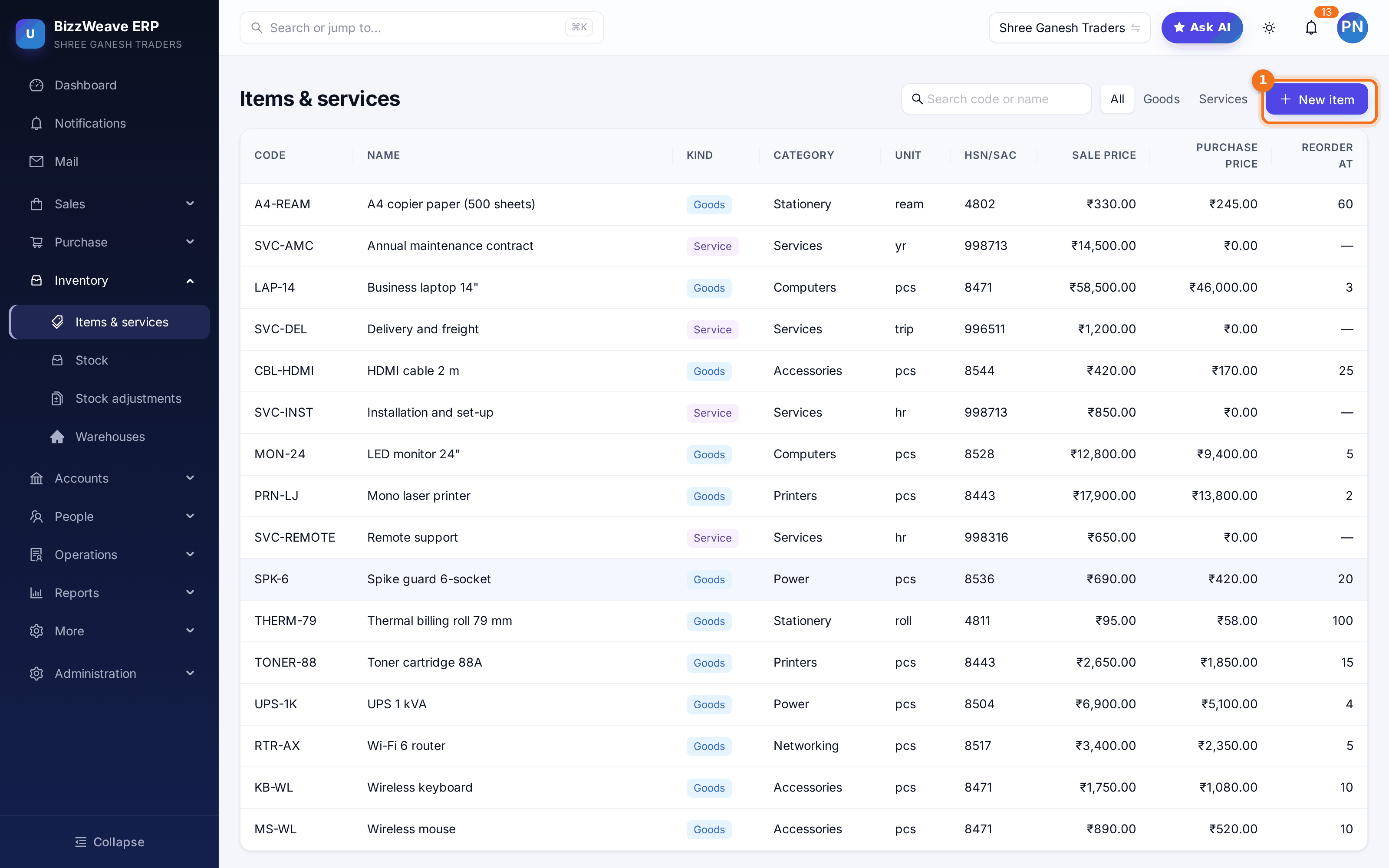
The list shows each item's code, name, kind, category, unit, HSN/SAC, sale price, purchase price and reorder level. Click a row to edit the item.
Add an item
-
Click “New item”.

A new stock item with HSN code 8539 and GST 12%. -
Fill in the details.
Field What to enter Example Code Required. A short unique code: letters, digits, ._/-.LED-9W Name Required. As it should print on documents. LED bulb 9 W Kind Goods or Service. Goods Unit Required. How you count it. pcs, kg, ream, hr Category Your own grouping. Electricals HSN/SAC Digits only. 8539 Sale price, Purchase price Required. Before GST. 85 and 52 Default tax The GST rate used when you pick this item on a document. GST 12% Track stock Goods only. Tick it to keep stock quantities for this item. Ticked Reorder level Goods only. When stock falls to this level, the item shows under Reorder. 200 Description, Active Untick Active to stop using an item without deleting it. -
Click “OK”. The message Item saved appears.
Opening stock
A new item starts with no stock. Add the quantity you already have with a stock adjustment using the reason Opening stock, or receive it on a purchase order.
Where do the GST rates come from?
From the tax rates under Administration → System → Billing & GST (for example GST 5%, GST 12%, GST 18%). An administrator can add more there.
Can I delete an item?
No. Untick Active; the item disappears from the pickers but its history stays.