Boards across projects
A board shows the work of several projects, or of a whole department, as cards in columns: To do, In progress, In review and Done. Use it for a daily stand-up across clients or to see what one team has on its plate.
Before you start
- You need the Project Management category. You see only the projects you have access to.
- Each project also has its own board on its Board tab; see Tasks, board and tree. This page is about boards that combine projects.
- Time needed: about 2 minutes to create a board.
Read a board
Open Projects → Boards in the menu. The first board you have opens.
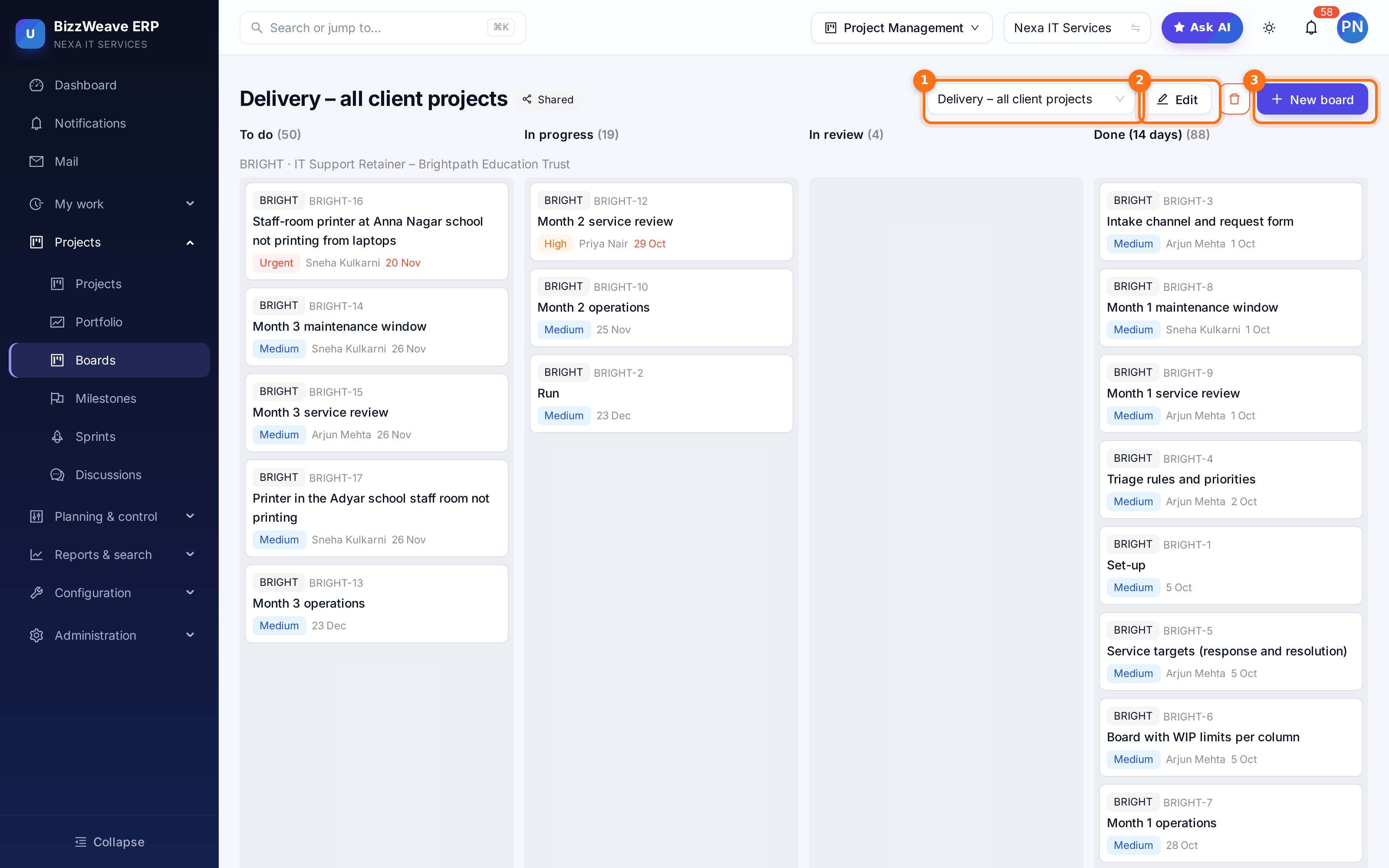
- Columns: To do, In progress, In review and Done (14 days). The Done column shows only items finished in the last 14 days, so it stays short. The number next to each column is how many cards it holds.
- Rows (swimlanes) group the cards, for example one row per project.
- Each card shows the project code, the item key (click it to open the item), the title, the priority, the assignee and the due date. A red date means the item is overdue. A red Blocked tag and a lock icon (confidential item) appear when they apply.
- The board updates live: when someone moves an item in a project, the card moves here too.
- A Shared tag next to the title means everyone in the organisation can open this board. Boards someone else shared with you appear in the selector as (shared with me).
Move work on the board
Drag a card to another column to change its status, for example from In progress to In review.
Projects with a workflow
If the item's project uses a workflow with approval steps (for example Task with review), the ERP may need to know which step to take. If it can't choose, the card jumps back and a message asks you to open the item's project board to pick the step. Moving to In review may also start an approval; see Approvals.
Create a board
-
Click “New board” at the top right (or Create a board if you have none yet).

The New board window. -
Fill in the form.
Field What to enter Example Name (required) A name people recognise. Infrastructure team Projects Up to 50 projects. NETST, BRIGHT And every project of a department Shown when your organisation has departments. Projects added to the department later appear automatically. IT Services Rows By project, By assignee, By priority or One row. By assignee Only items assigned to whoever looks Each person sees only their own items. Handy for a shared "My items" board. Off Share with the organisation Lets everyone open the board. On -
Click “Save”. The board opens.
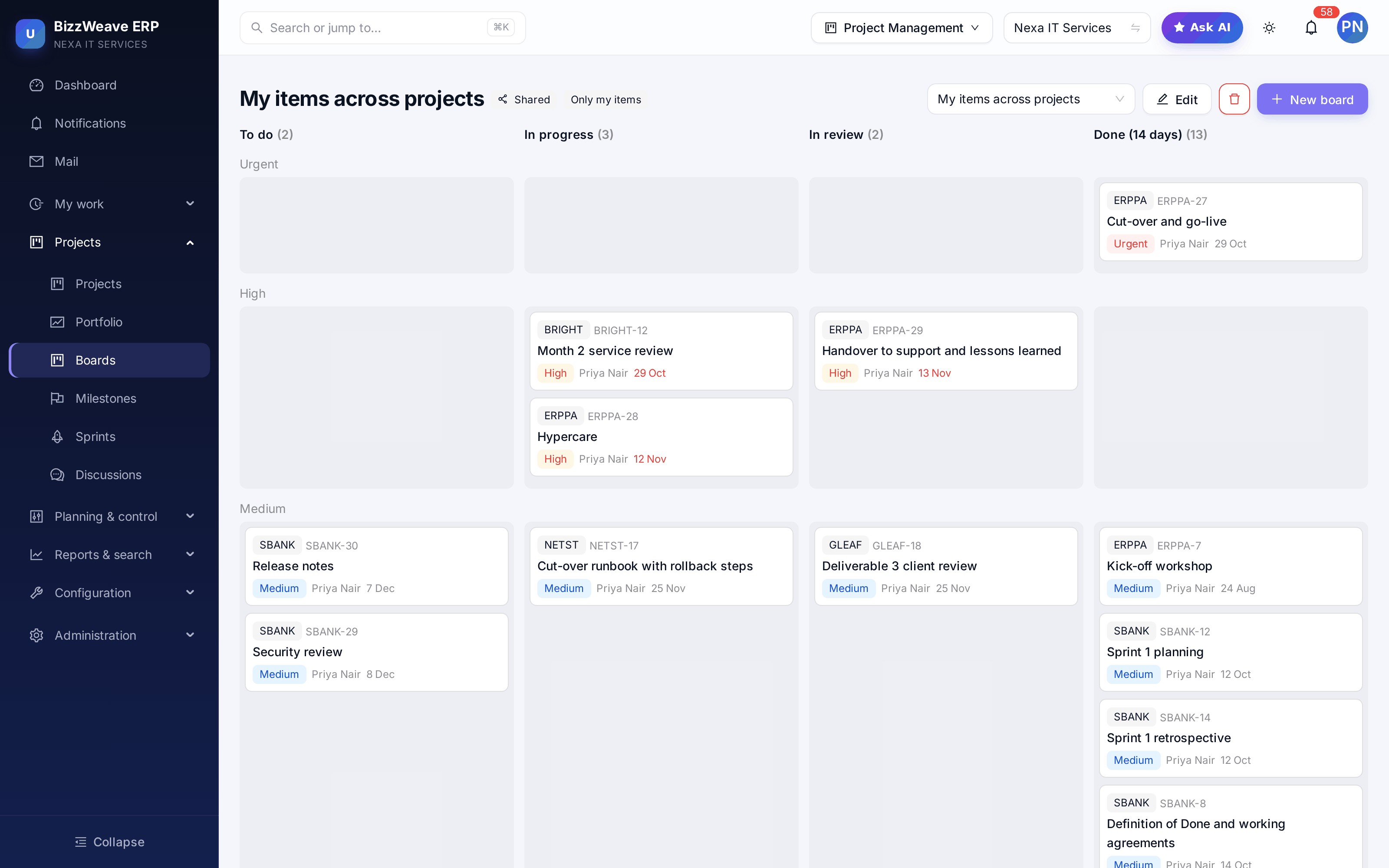
To change a board, open it and click Edit. To delete it, click the red bin icon and confirm. Deleting a board never changes the items on it.
Common questions
I can't see Edit on a board
Only the person who created a board can edit or delete it. Ask them, or create your own copy with New board.
A project on the board shows no cards
You may not have access to that project. If none of the board's projects is visible to you, the board says so at the top.
The board says it shows only the first 1,500 items
Very large boards are cut off. Narrow the board: choose fewer projects or switch on Only items assigned to whoever looks.
Where did my finished item go?
The Done column shows only the last 14 days. Older finished items are still in the project; find them with Search.