Risks and issues
A risk is something that could go wrong, such as a vendor delivering late. An issue is something that has gone wrong and needs fixing now. Keep both in one place, score risks so the worst stand out, and escalate issues that are not resolved in time.
Before you start
- Risks and issues are raised inside a project, on its Risks & issues tab. The Planning & control → Risks & issues page shows them across every project you can see.
- To raise or edit risks you need a role such as Project Manager, Team Leader, QA Engineer or Department Manager. Every member can raise and update issues. The Settings tab is for administrators.
- Time needed: about 3 minutes per risk or issue.
The risk register and heat map
Open Planning & control → Risks & issues. The Risk register tab shows a heat map on the left and the list of risks on the right.
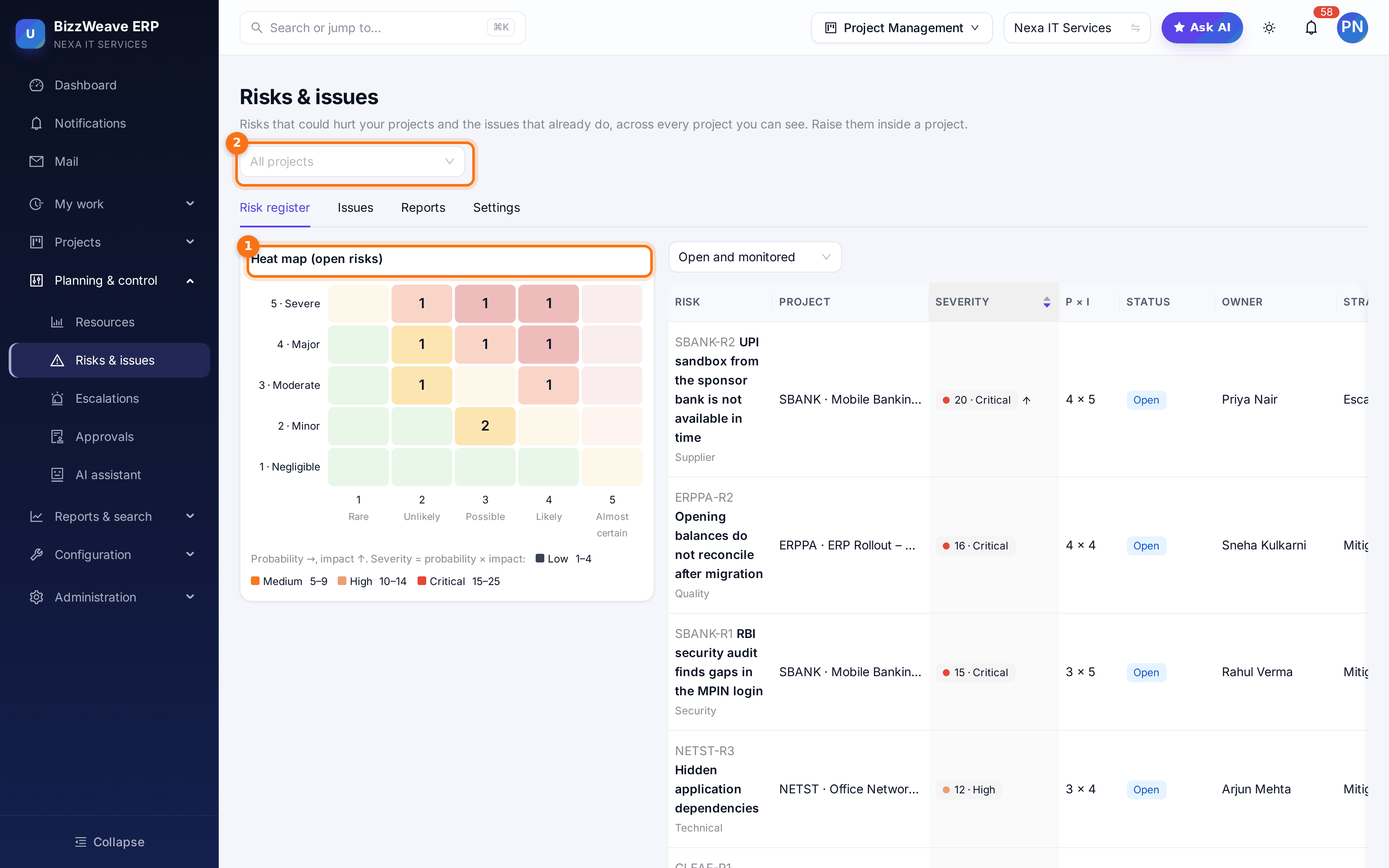
Each risk has two scores from 1 to 5:
| Score | 1 | 2 | 3 | 4 | 5 |
|---|---|---|---|---|---|
| Probability | Rare | Unlikely | Possible | Likely | Almost certain |
| Impact | Negligible | Minor | Moderate | Major | Severe |
Severity = probability × impact (1 to 25). The severity falls into a band: Low (1–4), Medium (5–9), High (10–14) or Critical (15–25). Your administrator can change where the bands start.
How to use the register:
- Click a heat-map cell to list only the risks with that probability and impact. Click Clear cell filter to see them all again.
- Show: choose Open and monitored (the default), All, Closed or Occurred.
- Read the columns: Severity (an arrow shows whether it went up or down at the last assessment), P × I, Status, Owner, Strategy, Actions (done/total, with a red mark if one is overdue) and Review (red when the risk is due for review).
- Open a risk: click its row.
Raise a risk
-
Open the project and click the Risks & issues tab. Make sure Risk register is selected, then click Raise risk.

1 Raise risk. 2 Switch between Risk register, Issues and Reports for this project. -
Fill in the risk. Only the title, probability and impact are needed; the severity is calculated as you click.

The Raise a risk window. Field What to enter Example Risk What could happen, in one sentence. RBI security audit finds gaps in the MPIN login Probability and Impact Click 1–5 for each. Hover over a number to see its meaning. 3 (Possible) × 5 (Severe) = 15, Critical Category From your organisation's list. Security Owner The person who watches the risk. Rahul Verma Cause Why it could happen. The bank audits every release against RBI guidelines Trigger The early warning sign that it is happening. Audit checklist arrives with more than five open points Response Avoid (change the plan so it cannot happen), Transfer (insurance, contract, supplier), Mitigate (reduce probability or impact), Accept (keep a contingency) or Escalate (hand it to a higher level). Mitigate Mitigation plan What you will do to reduce it. Internal VAPT in sprint 3 Contingency (if it happens) Plan B. Release Android first Next review When to look at it again. Default: in 14 days. 1 Dec 2026 -
Click “Raise risk”. The risk gets a number such as SBANK-R1 and opens so you can add actions.
Work on a risk
Click a risk to open it.
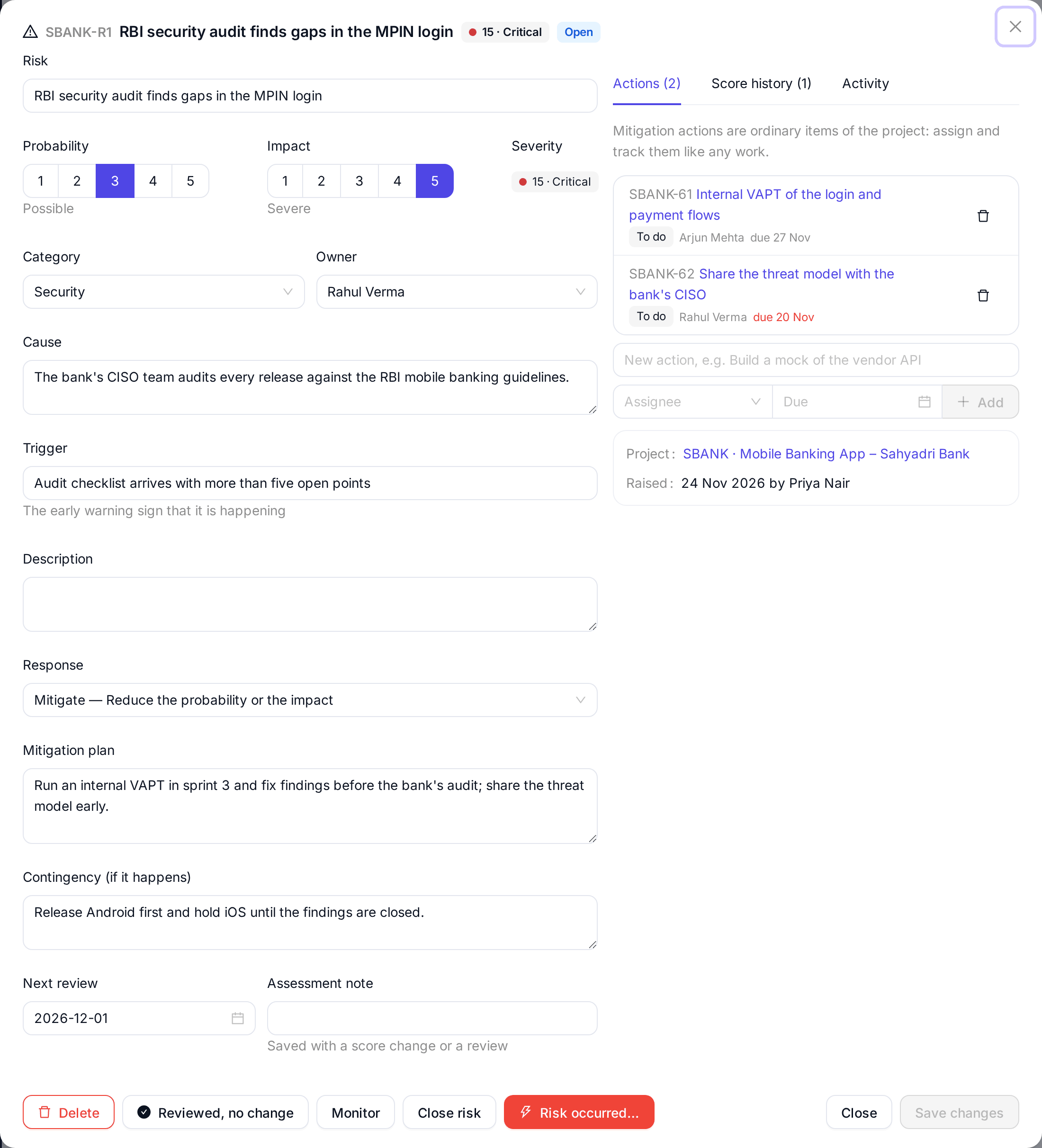
- Change the details on the left and click Save changes. When you change the probability or impact, type an Assessment note; it is kept in the Score history tab.
- Add mitigation actions on the Actions tab: type the action, choose an Assignee and a Due date, and click Add. Each action becomes an ordinary work item in the project, so it appears in the person's Tasks and on the board.
- Reviewed, no change: click it after a review when nothing has changed. The next review date moves forward.
- Monitor: the risk is under control but you keep watching it (status Monitoring).
- Close risk: it can no longer happen. Reopen brings it back.
- Risk occurred…: the risk has happened. The ERP asks for the issue's title, priority, impact, owner and resolution date, then creates an issue linked to the risk (the risk status becomes Occurred).
- Activity shows who changed what.
The issue log
The Issues tab lists problems that need action now.

| Column | Meaning |
|---|---|
| Issue | Number and title. Blocks N means it blocks N open items; From …-R1 means it came from a risk that occurred. |
| Priority | Low, Medium, High or Urgent. |
| Status | Open, In progress, Resolved or Closed, plus the escalation Level if it was escalated. |
| Resolve by | The target date; red with a mark when it has passed. |
| Age | Days since it was raised. |
Use Show to choose Open, All, Resolved or Closed.
Raise an issue
-
In the project's Risks & issues tab, click Issues, then Raise issue.
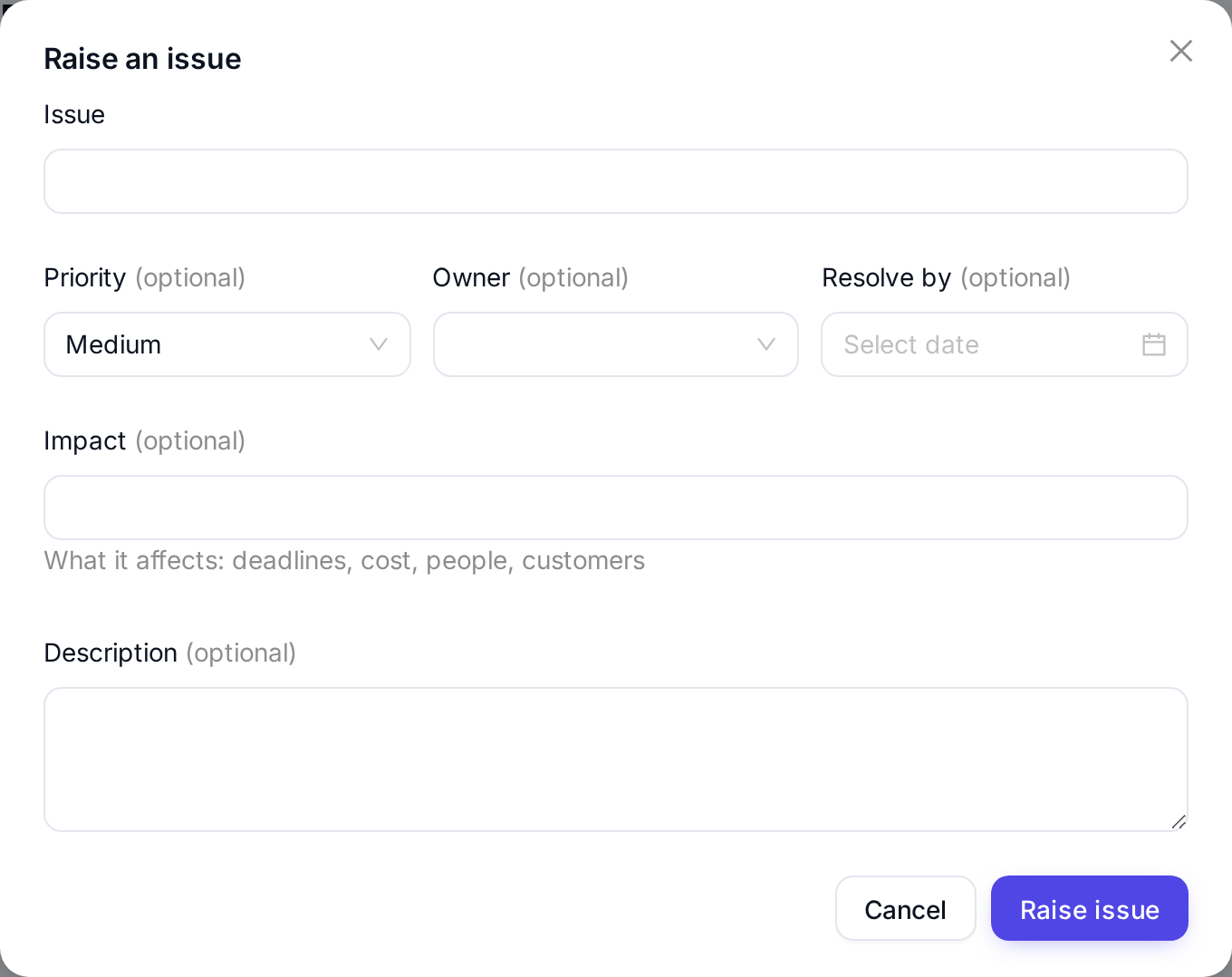
The Raise an issue window. -
Enter the Issue (what went wrong), the Priority, the Owner who will fix it, the Resolve by date, the Impact (what it affects: deadlines, cost, people, customers) and a Description.
- Click Raise issue.
Work on an issue

- Start work moves it to In progress.
- Comment in the History card on the right; every status change and escalation is listed there too.
- Block items: in Blocked items, search for a project item and click Block. While the issue is open those items are marked Blocked and cannot be submitted for review. Resolving the issue unblocks them.
- Escalate raises the issue to the next level (up to 3), with an optional reason. The escalation rules can also do this automatically (see Escalations).
- Resolve… asks how it was resolved (required). Close it afterwards, or Reopen it if the problem returns.
Risk and issue reports
The Reports tab (on the organisation page and inside each project) summarises everything.

| Part | What it shows |
|---|---|
| Open risks | Count, with how many are critical and high. |
| Exposure | The sum of the open risks' severity. A rising exposure means risk is building up. |
| Open issues | Count, with how many are past the date and escalated. |
| Average resolution | Average days to resolve, for issues resolved in the last 90 days. |
| Heat map and Top risks | Click a cell or a row to open the risks. |
| Risk exposure chart | Exposure, open risks and high-or-critical risks at the end of each week. |
| Issues per week | Raised against resolved. |
| Open issues by age | 0–7 days, 8–30, 31–90 and over 90 days, by priority. |
| By project | Risks, high risks, exposure, issues and late issues per project. On the organisation page you can also filter by department. |
Settings
Administrators see a Settings tab on the organisation page.

- Categories: the list offered when raising a risk. Type a new one and press Enter, or click × to remove one.
- Medium from, High from, Critical from: where each severity band starts.
- Review every (days): the default time until a risk's next review.
Click Save settings.
Common questions
Why can't I see a Raise risk button on the Risks & issues page?
Risks and issues are raised inside a project. Choose a project in the box at the top and click Open the project's register, or open the project and go to its Risks & issues tab.
An issue's priority went up by itself
The escalation rules can raise the priority when an issue stays unresolved past its date. See Escalations.
What is the difference between closing and resolving an issue?
Resolve says the problem is fixed and records how. Close files a resolved issue away. Both stop it from counting as open.
Can the AI suggest risks?
Yes. On the AI assistant page choose a project and click Risks. You review the suggestions and add only the ones you want.