CA settings: custom fields and tags
Add the extra information your firm keeps that the standard forms don't have, such as who referred a client or a director's DSC token serial number, and tidy up the tags people use to label clients.
Before you start
- Only owners and administrators can open CA settings.
- Time needed: 2 minutes per field.
Open Configuration → CA settings. The page has two tabs: Custom fields and Tags.
Custom fields
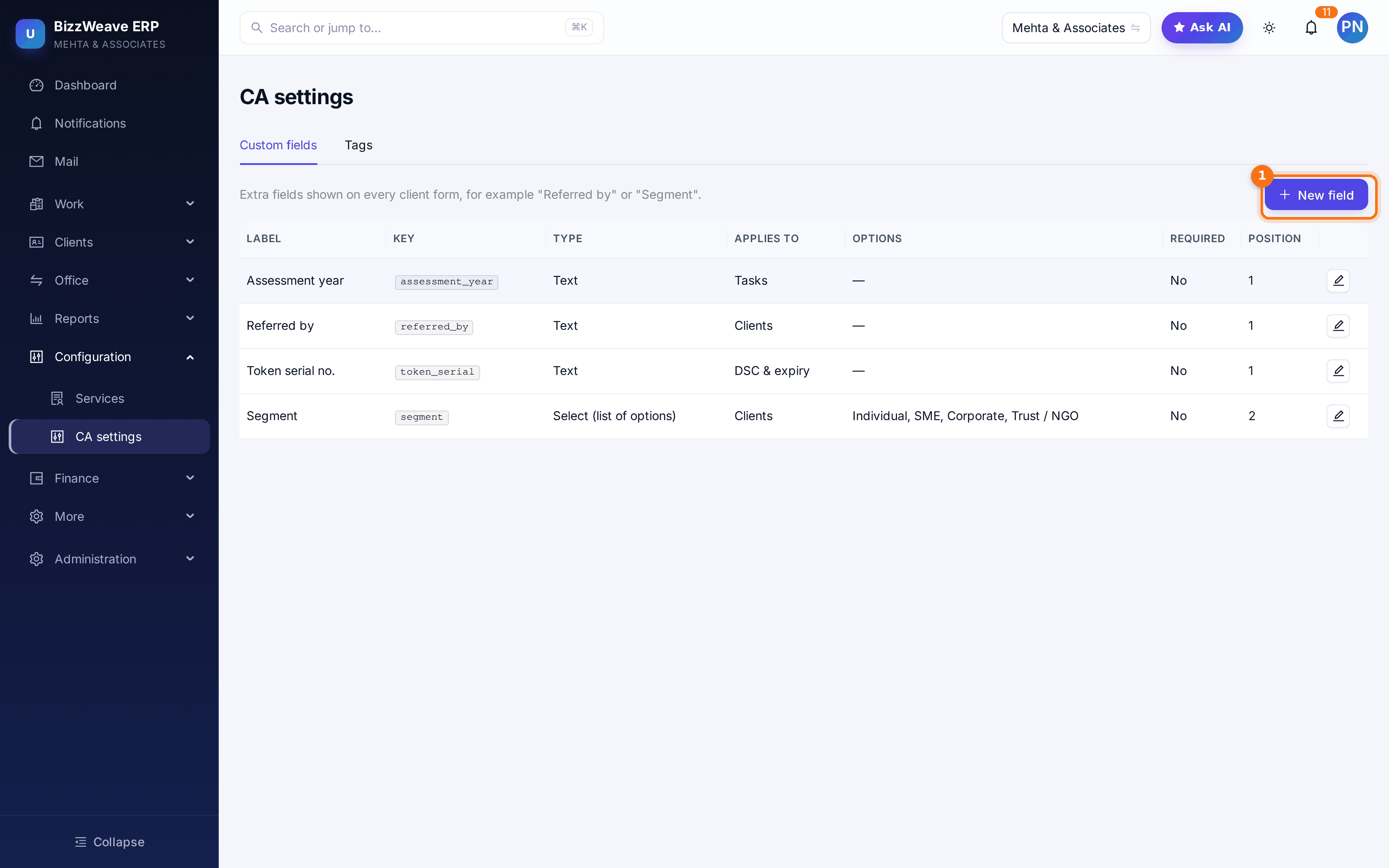
Each custom field appears on one kind of form:
| Applies to | Where the field appears |
|---|---|
| Clients | In a Custom fields section of the client form (Add client and Edit client) and on the client's Profile tab. |
| Compliance tasks | In the Dates, UDIN and engagement section of every task. |
| DSC & expiry items | In the Add / Edit window of the DSC register. |
Add a field
- Click New field 1.
-
Fill in the window:

A list field with three turnover bands. Field What to enter Label (required) The name people see, for example Annual turnover band. Key (required) Filled in from the label (annual_turnover_band). Lower-case letters, digits and _. Can't be changed later. Type Text, Number, Date, Yes / No or Select (list of options). Fixed after creation. Applies to Clients, Compliance tasks or DSC & expiry items. Fixed after creation. Position The order on the form; lower numbers come first. Options (one per line) For Select fields only: the choices. Required Tick it if the form can't be saved without this field. -
Click Save.
To change a field, click its pencil icon. You can change the label, position, options and Required, or untick Active to hide it from forms. Inactive fields keep the values already saved, which still show on the records that have them.
Tags
Tags are labels on clients, such as Audit client, GST monthly or NRI. They are created automatically when someone types a new tag on a client. Use them to filter the client list and to choose who receives a broadcast.

-
Rename or recolour: click the pencil icon, change the Name or choose a Colour, and click Save.

The Audit client tag is purple. -
Delete: click the bin icon and confirm. The tag is removed from every client that has it; the clients themselves stay.
Common questions
Where do I set prices, due dates and checklists?
In the services catalogue, not here. See Services.
I made a typo in a field's key
The key can't be changed. Untick Active on that field and create a new one.