Calendar
The calendar shows the dates of your projects month by month: when items are due, when milestones fall and when deliverables are expected. You can also subscribe to your work from Google Calendar, Outlook or Apple Calendar.
Before you start
- Choose Project Management in the category switcher, then open My work → Calendar.
- The calendar is shared by every app that adds dates. With Project Management selected it shows project dates only; with CA ERP selected it shows compliance dates.
- Time needed: about 3 minutes.
The month view
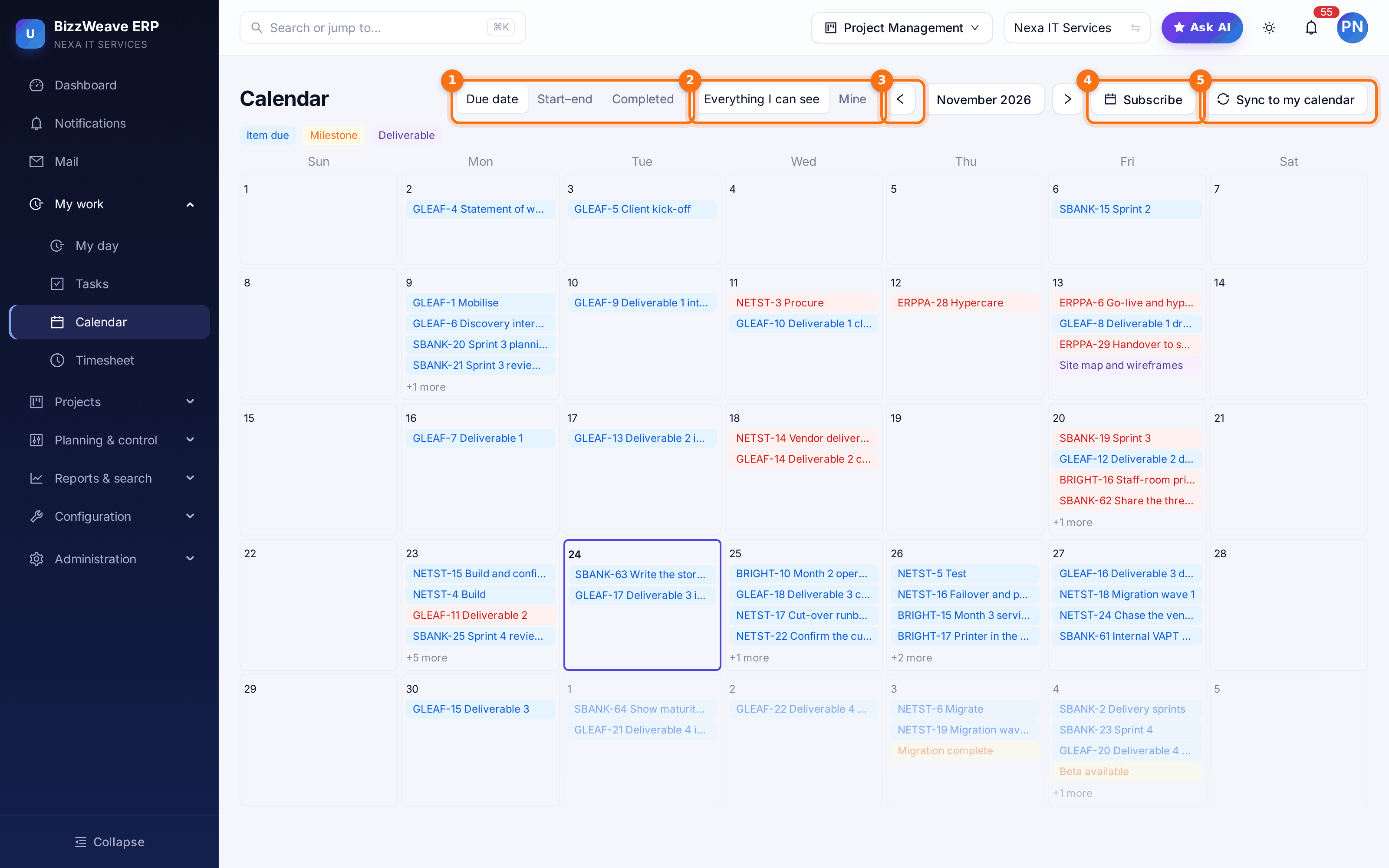
Each entry is a coloured tag. The legend above the grid explains the colours:
| Colour | Meaning |
|---|---|
| Blue | Item due: a task or other work item on its due date. |
| Gold | Milestone: a key date of a project. |
| Purple | Deliverable: something handed over to the client. |
| Red | The entry is overdue. |
Today's date has a coloured border. Each day shows up to four entries; hover over +N more to see the rest. Hover over any tag to see the project and full title.
Click an entry to open it: an item opens in the task window, a milestone opens the project's Milestones tab and a deliverable opens the project's Overview.
Choose what to show
| Control | Options |
|---|---|
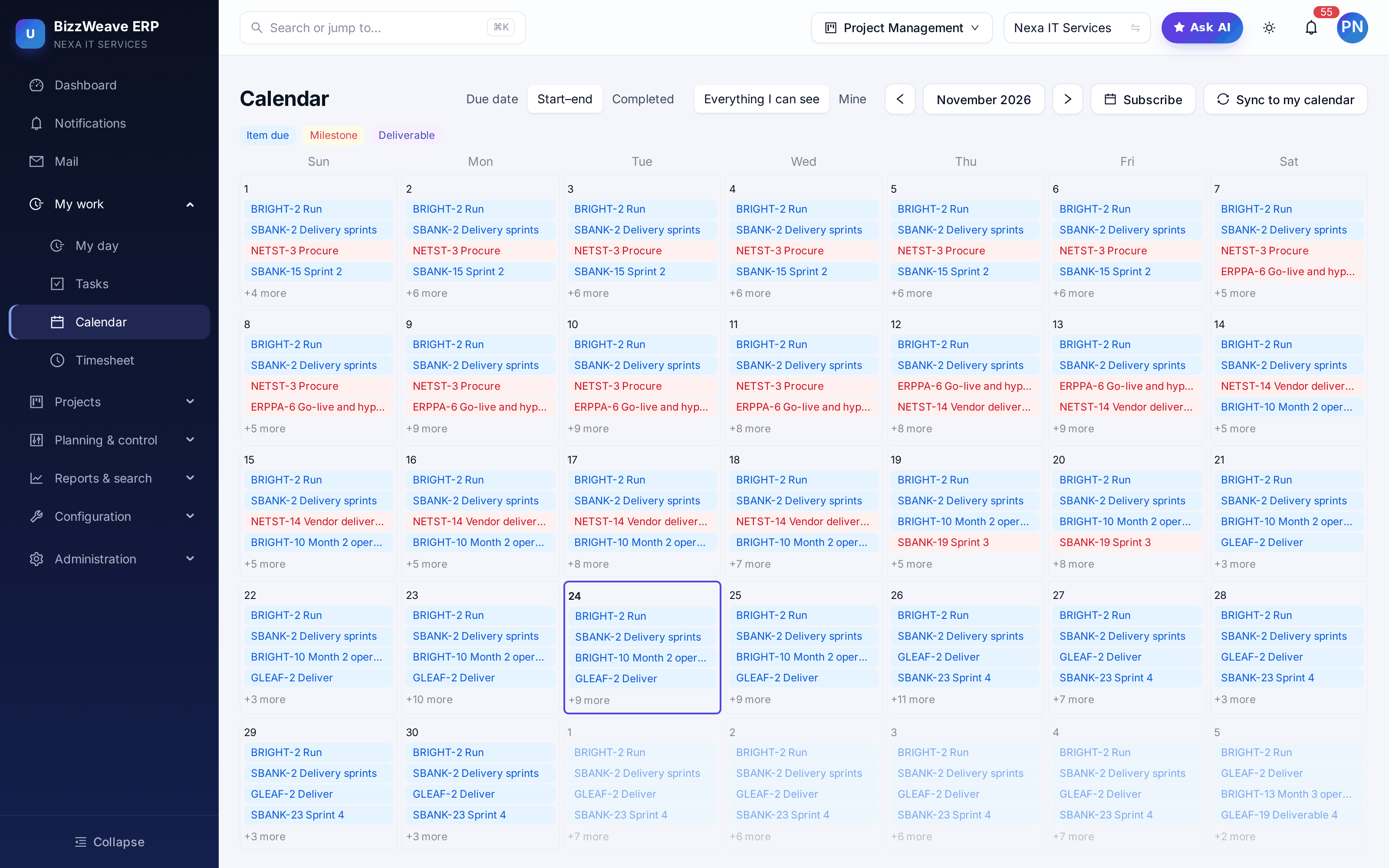
| Date basis 1 | Due date (default): each item on its due date. Start–end: each item on every day from its start to its due date, useful to see what is running at the same time. Completed: finished items on the day they were completed. |
| Scope 2 | Everything I can see or only Mine. |
| Month 3 | ‹ and › move a month back or forward. Click the month name to return to the current month. |
Subscribe from your calendar app
A calendar feed is a private web address (link) that your calendar app reads every few hours. It adds the items assigned to you, the milestones of your projects and the meetings you attend.
-
Click “Subscribe” 4 at the top of the calendar, then New feed.

Name the feed and choose what it includes. -
Fill in the form.
Field What to enter Example Name (required) A name to recognise the feed. My work Include (at least one) Items assigned to me, Milestones, Meetings. All three -
Click “Create feed”. The ERP shows the feed address in a green box. Copy it now: it is shown only once.
- Add the address to your calendar app.
- Google Calendar: Other calendars → + → From URL, paste the address.
- Outlook: Add calendar → Subscribe from web, paste the address.
- Apple Calendar: File → New Calendar Subscription, paste the address.
What happens next
Your project dates appear in your calendar app. Calendar apps refresh the feed every few hours, so a change in the ERP can take a while to appear. The feed list shows when each feed was last read.
Keep the address private
Anyone who has the address can read the feed. If it leaks, open Subscribe and click Remove next to the feed; calendars using it stop updating. You can have up to five feeds.
Sync to Google or Microsoft 365
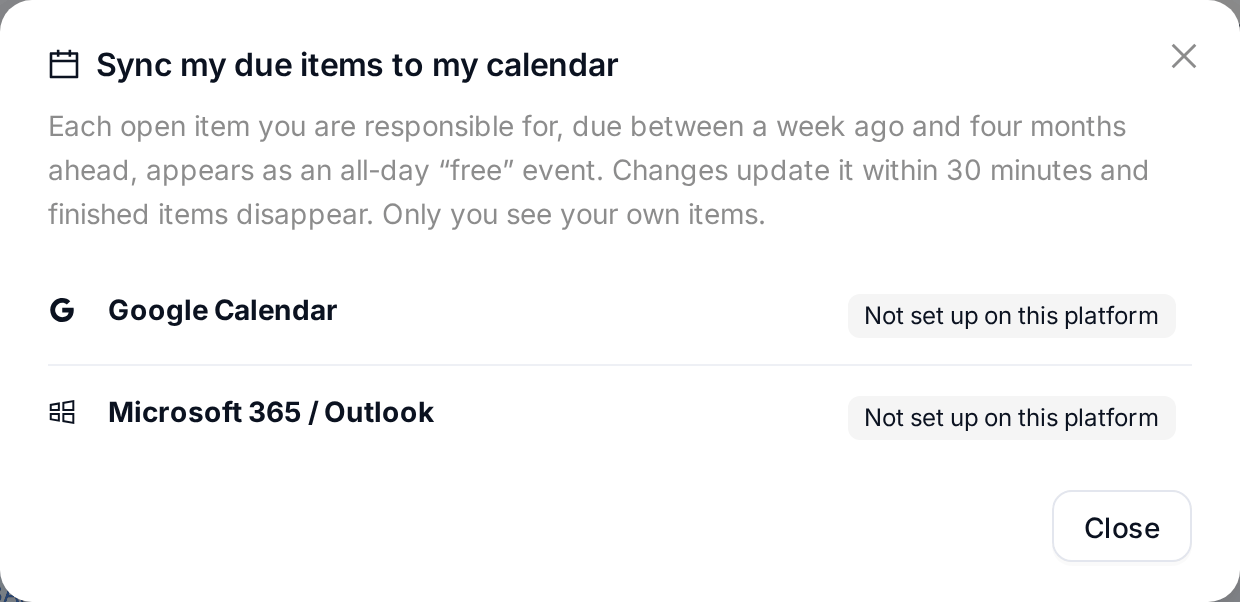
Sync to my calendar 5 connects your Google Calendar or Microsoft 365 / Outlook account directly. Each open item you are responsible for, due between a week ago and four months ahead, appears as an all-day event marked free. Changes reach your calendar within 30 minutes, and finished items disappear.
- Click Sync to my calendar.
- Click Connect next to Google Calendar or Microsoft 365 / Outlook and sign in to that account to allow access.
- Back in the ERP, the provider shows Connected, the number of events and the last sync time. Click Sync now to update immediately, or Disconnect to remove the connection and the events it added.
Not set up on this platform
If a provider shows Not set up on this platform, your BizzWeave ERP administrator has not configured that connection yet. Use Subscribe instead, which works with any calendar app.
Common questions
What's the difference between Subscribe and Sync?
Subscribe gives you a read-only link that any calendar app can poll; it includes items, milestones and meetings and refreshes every few hours. Sync connects your Google or Microsoft account and writes your due items as events, updating within 30 minutes.
Why don't I see CA compliance dates?
The calendar shows the dates of the category you have chosen. Switch to CA ERP in the category switcher to see compliance dates.
Can I add an event directly on the project calendar?
No. The calendar shows dates that come from items, milestones and deliverables. Change the item's dates, or plan a meeting on the project's Meetings & decisions tab (see Meetings).