Project team, access and settings
Decide who works on a project and what each person may do, who can see it, which workflow its tasks follow and which steps need an approval. You can also give a client a private link to follow progress.
Before you start
- Open the project from Projects → Projects and click its name.
- To add people or change roles you must be a project manager of the project (or an administrator).
- To change the visibility, method or workflow you also need permission to edit projects.
- Time needed: about 5 minutes.
Both tabs sit in the row of tabs inside a project. If you can't see them, click ⋯ at the right end of the tab row.
The Team & access tab
The Team & access tab lists the people on the project and their project role. A project role only applies inside this project: Rahul can be project manager of one project and an observer on another.
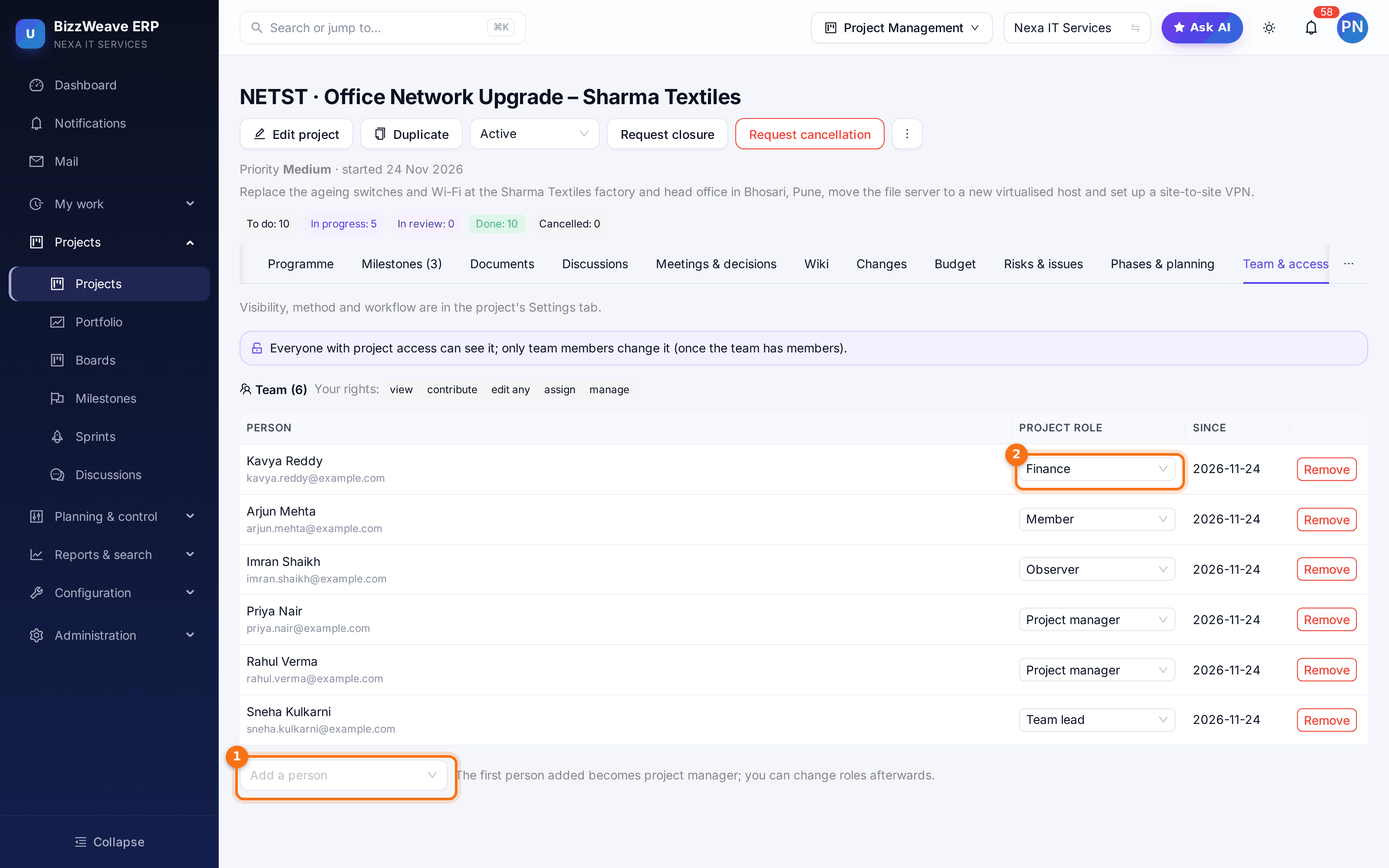
Above the list, a blue box says who can see the project (from Settings), and Your rights shows what you may do in it.
Project roles
| Role | What the person can do in the project |
|---|---|
| Project manager | Everything: plan, assign, change any task, manage the team, settings, budget and approvals. |
| Team lead | See, work on tasks, change any task and assign work. |
| Member | See the project and work on tasks (their own and new ones). |
| QA | Same as a member. QA people can also approve tasks sent for review in the shipped “Task with review” workflow. |
| Finance | See the project. People with budget rights in the organisation can approve its budgets. |
| Observer | See the project only, for example a sponsor or an auditor. |
A project with no team
Until you add the first person, everybody works with their organisation role, as in a simple project. As soon as the team has members, only members change the project; other people can at most look at it, depending on its visibility.
Add a person or change a role
- Open the project and click the Team & access tab.
- Choose the person in the Add a person box 1 below the list. They are added as a Member. The very first person you add becomes Project manager.
- Change the role with the box in the Project role column 2. The change is saved at once.
- To take someone off the project, click Remove on their row and confirm.
Every project keeps one project manager
You can't remove the last project manager or give them another role. Make someone else project manager first.
The Settings tab
The Settings tab holds the project's general settings, its workflow, the lifecycle approvals, automation, custom fields and client links.

General
| Setting | What it means | Example |
|---|---|---|
| Visible to | Whole organisation: everyone with project access can see it; only team members change it. Team members: only team members (and project directors) see it. Private: only team members see it, not even directors. | Whole organisation |
| Method | How the team works: Waterfall (phases one after another), Scrum (sprints), Kanban (continuous flow) or Hybrid. | Waterfall |
| Business category | The kind of project, such as it services, construction or marketing. Used for grouping in reports. | it services |
Each change is saved as soon as you choose a value.
Workflow
A workflow is the set of states a task moves through and the actions that move it, for example New → Assigned → In progress → Under review → Approved → Completed. In Items follow, choose:
- No workflow (simple statuses): tasks move freely between To do, In progress, In review, Done and Cancelled.
- Task with review (shipped): the workflow that comes with BizzWeave ERP. Work that is submitted for review needs a project manager, team lead or QA to approve it.
- Any workflow your organisation designed under Configuration → Workflows (see Workflows).
When you change the workflow, the ERP asks you to confirm. Every task gets the state that matches its current status, and approvals that are still waiting under the old workflow are cancelled. Only the project's managers can change it.
Lifecycle and approvals
This card controls which big steps in the life of the project need someone's approval.
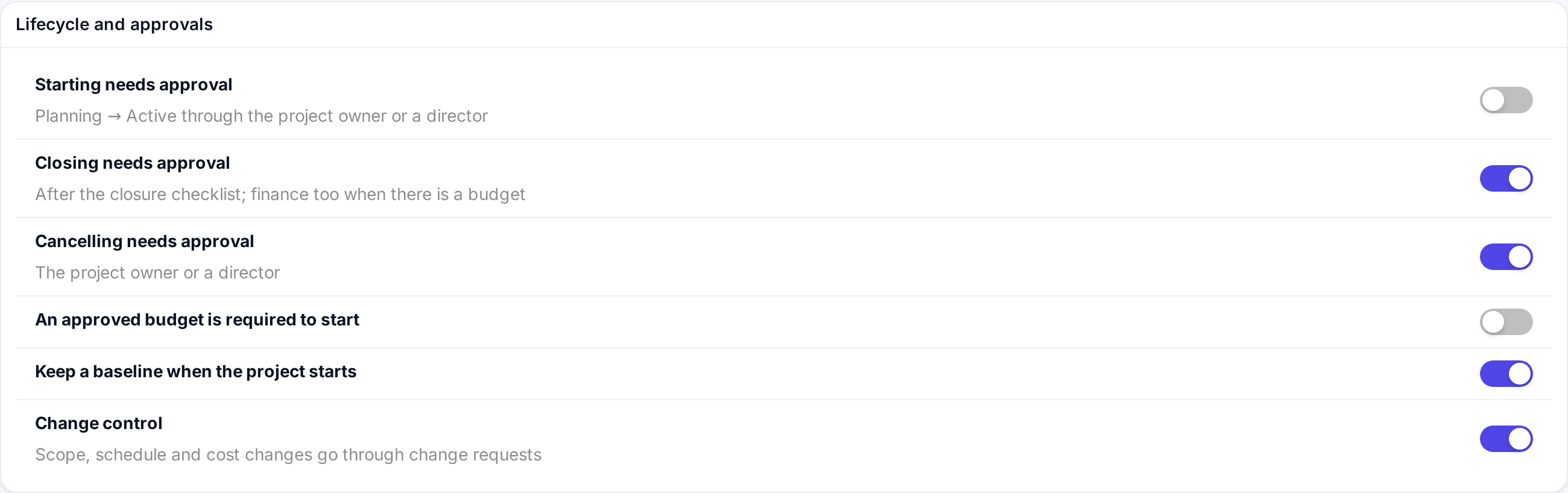
| Switch | When it is on |
|---|---|
| Starting needs approval | Moving the project from Planning to Active goes to the project owner or a director first. |
| Closing needs approval | Closing goes for approval after the closure checklist; finance approves too when the project has a budget. |
| Cancelling needs approval | Cancelling goes to the project owner or a director. |
| An approved budget is required to start | The project can't start without an approved budget (see Budget). |
| Keep a baseline when the project starts | A copy of the plan is saved when the project starts, so you can compare later. |
| Change control | Scope, schedule and cost changes go through change requests. |
The buttons at the top of the project follow these switches. When closing needs approval, the button says Request closure instead of Close project; the same for Request start and Request cancellation.

Close a project
- Click Request closure (or Close project) at the top of the project.
- Read the checklist. A green tick means done; a red cross must be fixed first; an orange mark with advice is only a warning.
- If tasks are still open, you can switch on Cancel the remaining open items when the project closes.
- Type a note for the approver (optional) and click Send for approval (or Confirm).
What happens next
The request waits in the approver's Approvals inbox, and the button changes to “Closure waiting for approval” with a Withdraw button. Once approved, the project becomes read-only and a closing baseline is kept. Its managers can reopen it.
To cancel a project, click Request cancellation (or Cancel project). A reason is required; you can also cancel the project's open items.
Automation and custom fields
Lower on the Settings tab you find:
- Project details (custom fields): extra fields your organisation defined for projects, such as a contract value. Fill them in here.
- Automation: the automation rules that apply to this project, with recipes to start a new one. All rules opens the full list (see Automation).
- Custom fields of this project: fields that exist only in this project. See Custom fields.
Share the project with a client
A client link is a private web address that shows your client the project's progress, milestones, deliverables, the tasks you mark visible to clients and the files you choose. It never shows costs, budgets or your team's contact details. The client doesn't need a BizzWeave ERP account.

- Open the project's Settings tab and scroll to Client links. (Only the project's managers see this card.)
-
Click Share with a client.

The Share with a client window. -
Fill in the window:
Field What to enter Example Client's name (required) The person you share with. Anita Rao E-mail (required) Their address. Codes for decisions are sent only here. [email protected] Company Their company. Green Leaf Organics Message on the page A note shown at the top of their page. Please review the visual design. Show Tick Milestones, Deliverables and Items marked visible to clients. All three Files Project files the client may download. None May accept or reject submitted deliverables Switch on to let the client decide. On Valid for (days) How long the link works, 1 to 180 days. 30 E-mail the link to the client Leave ticked to send it by e-mail. Ticked -
Click Create link. If you didn't e-mail it, copy the link from the window and send it yourself: it is shown only once.
The client sees a simple page with the progress, milestones and deliverables. A deliverable you have submitted shows Waiting for you with Accept and Reject buttons. To decide, the client asks for a six-digit code, which is e-mailed to them and is valid for 15 minutes.

On the Client links card, Log shows what the client did (opened the link, asked for a code, accepted, downloaded). Withdraw stops the link at once.
Show a task to the client
Open a task and switch on Visible to clients in its panel. Only tasks with this switch on appear in the client's Work items list.
Common questions
What is the difference between visibility and project roles?
Visibility decides who can see the project at all. Project roles decide what team members can do in it. People who aren't on the team can at most look at a project that is visible to the whole organisation.
I changed the workflow and some approvals disappeared
Changing (or turning off) the workflow cancels the approvals that were waiting under the old one, because their states may no longer exist. Ask the people to submit their work again.
Can I reopen a closed project?
Yes. A closed project is read-only for everyone except its managers, who can reopen it.
My client didn't get the e-mail
Withdraw the link, create a new one with E-mail the link to the client unticked, then copy the link from the window and send it yourself.