Meetings and decisions
Record each project meeting with its agenda, notes and attendees, turn the action points into tasks with an owner and a due date, and keep a numbered log of the decisions taken, so nobody has to ask "when did we agree that?".
Before you start
- You need the Project Management category. To add meetings, action items and decisions you must be able to contribute to the project (not an observer).
- Time needed: about 5 minutes per meeting.
The meetings list
Open a project and click the Meetings & decisions tab.
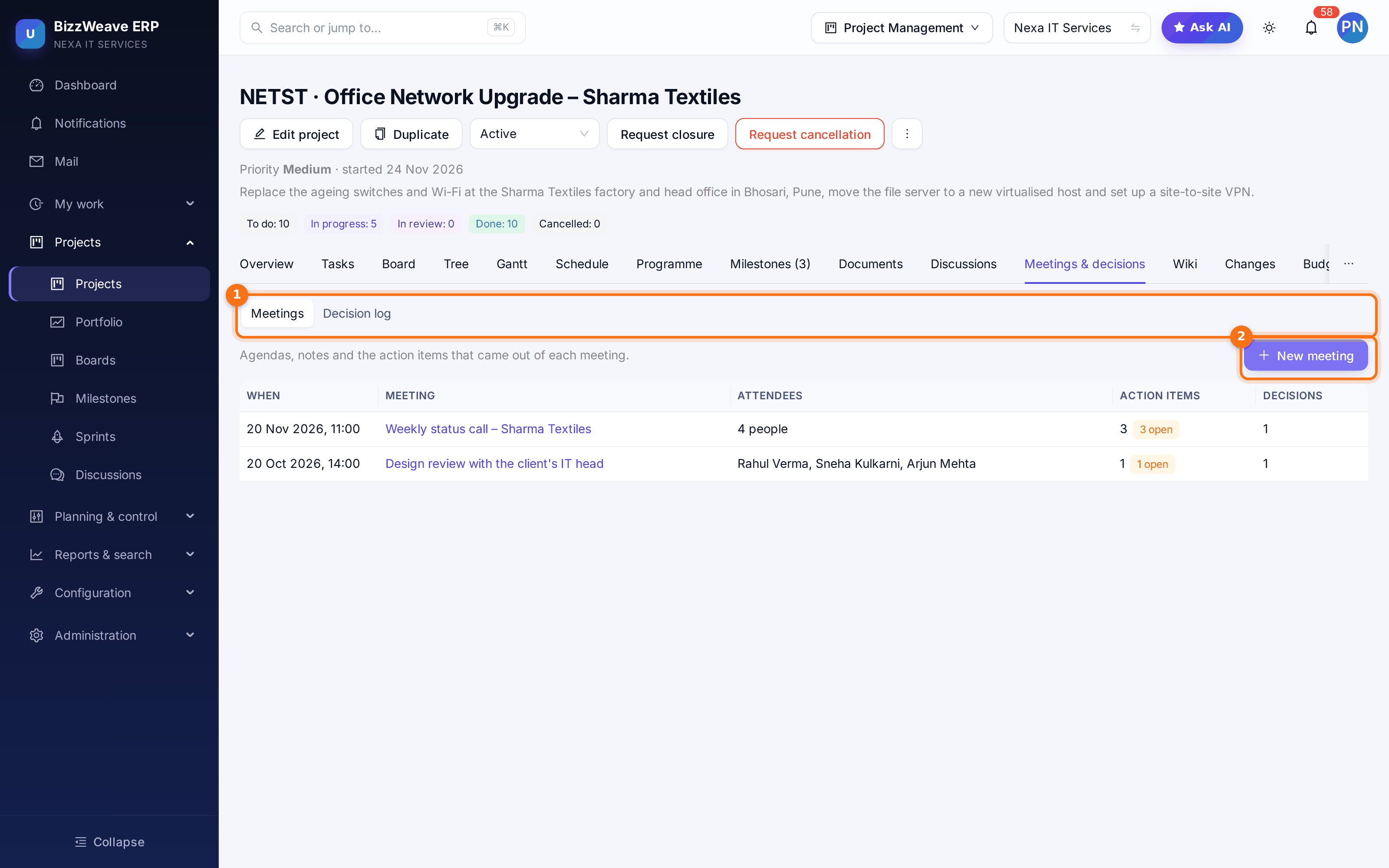
Each row shows When, the Meeting title (an Upcoming tag for future meetings), the Attendees, the Action items (with an orange N open tag, or a green all done tag) and how many Decisions were taken. Click a row to open the meeting.
Record a meeting
-
Click “New meeting”. A panel opens on the right.

The new-meeting form. Agenda and notes use the same editor as messages. -
Fill in the form.
Field What to enter Example Title (required) What kind of meeting it is. Weekly status call – Sharma Textiles When (required) Date and start time. 20 Nov 2026, 11:00 Minutes How long it lasts. 45 Where A room, site or call link. Google Meet Attendees People in the project. They are told about the meeting. Rahul Verma, Arjun Mehta, Kavya Reddy Agenda The points to discuss. 1. Hardware delivery 2. Cut-over date Notes What was discussed and agreed. You can fill this in during or after the meeting. -
Click “Create meeting”. The meeting opens.
You can record a meeting before it takes place (it shows Upcoming) and add the notes later with Edit.
Action items
Action items are the to-dos that come out of a meeting. Each one becomes a task in the project, linked to the meeting, so it appears in the owner's task list, on the board and on their calendar.
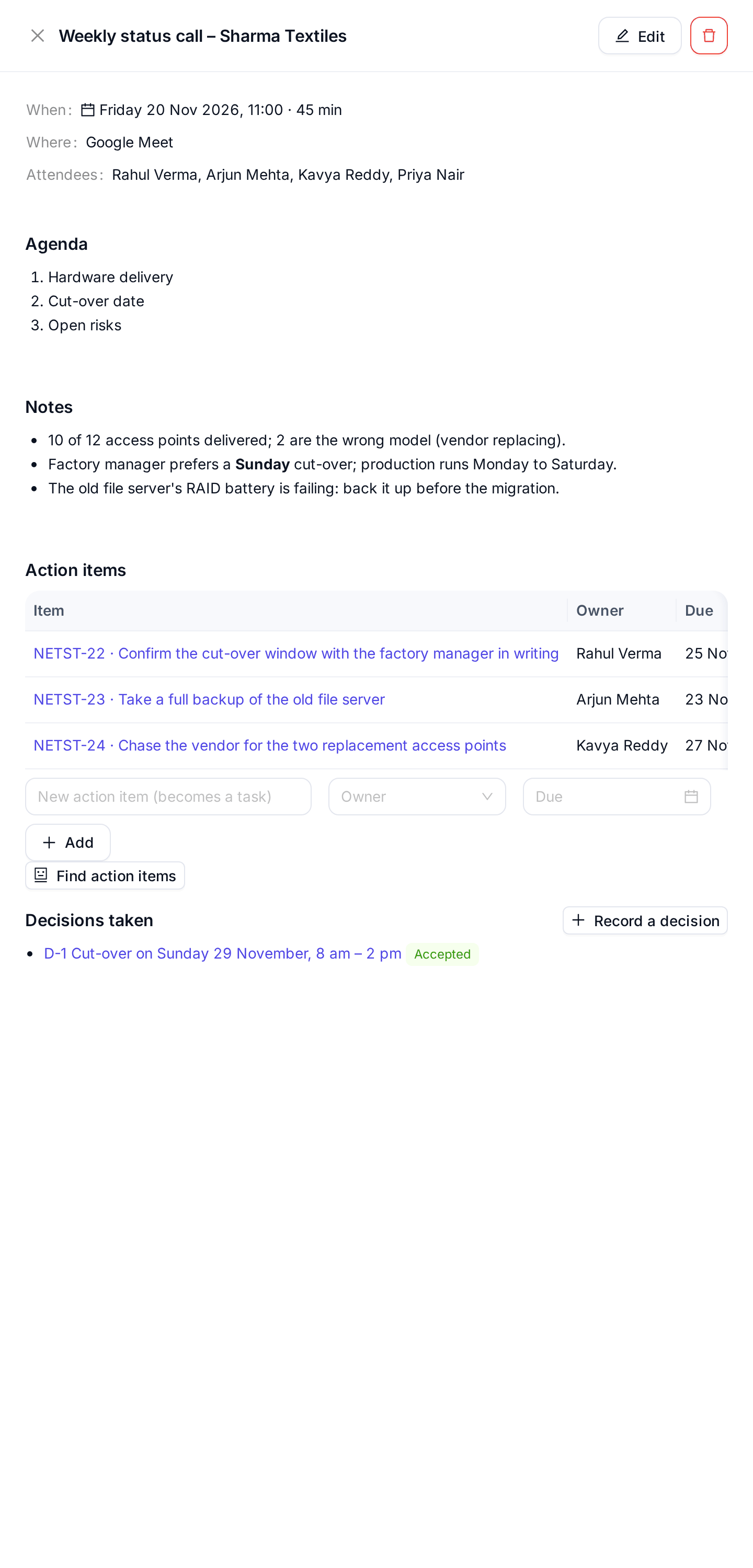
- Open the meeting.
- Under “Action items”, type what needs doing in New action item (becomes a task).
- Choose the Owner and the Due date.
- Click “Add”. The message Action item added as a task confirms it, and the task's key (for example NETST-23) appears in the list with its status.
To take a task off the meeting without deleting it, click the unlink icon at the end of its row. Deleting the whole meeting also keeps its tasks.
Let the assistant find the action items
If your notes contain lines such as Action: …, TODO: … or [ ] …, click Find action items. The AI assistant proposes tasks matched to the attendees; you review them before anything is created. See AI assistant.
The decision log
The decision log is a numbered list (D-1, D-2, …) of what the project decided, why and with what consequences. Click Decision log at the top of the tab.

Use All statuses to show only one status:
| Status | Meaning |
|---|---|
| Proposed | Suggested but not yet agreed. |
| Accepted | Agreed and in force. |
| Superseded | Replaced by a later decision (set automatically). |
| Reversed | Withdrawn. |
Record a decision
-
Click “Record a decision”, either on the Decision log or inside a meeting (then the meeting is filled in for you).

Only the title and what was decided are required. -
Fill in the form.
Field What to enter Example Title (required) The decision in a few words. Use one 48-port managed Layer-3 core switch What was decided (required) The decision itself. Replace the two unmanaged switches with one managed switch with VLANs. Context: why a decision was needed The problem. The current switches can't separate office, production and guest traffic. Options considered The alternatives. Consequences What follows from it. Status Usually Accepted. Accepted Decided on The date. 20 Oct 2026 In the meeting The meeting where it was taken. Design review with the client's IT head Decided by Who decided. Rahul Verma Related items Tasks it affects. Type to search. Replaces an earlier decision Choose the decision this one replaces. D-3 Keep the file server on site -
Click “Save”. The message Recorded as D-N shows its number.
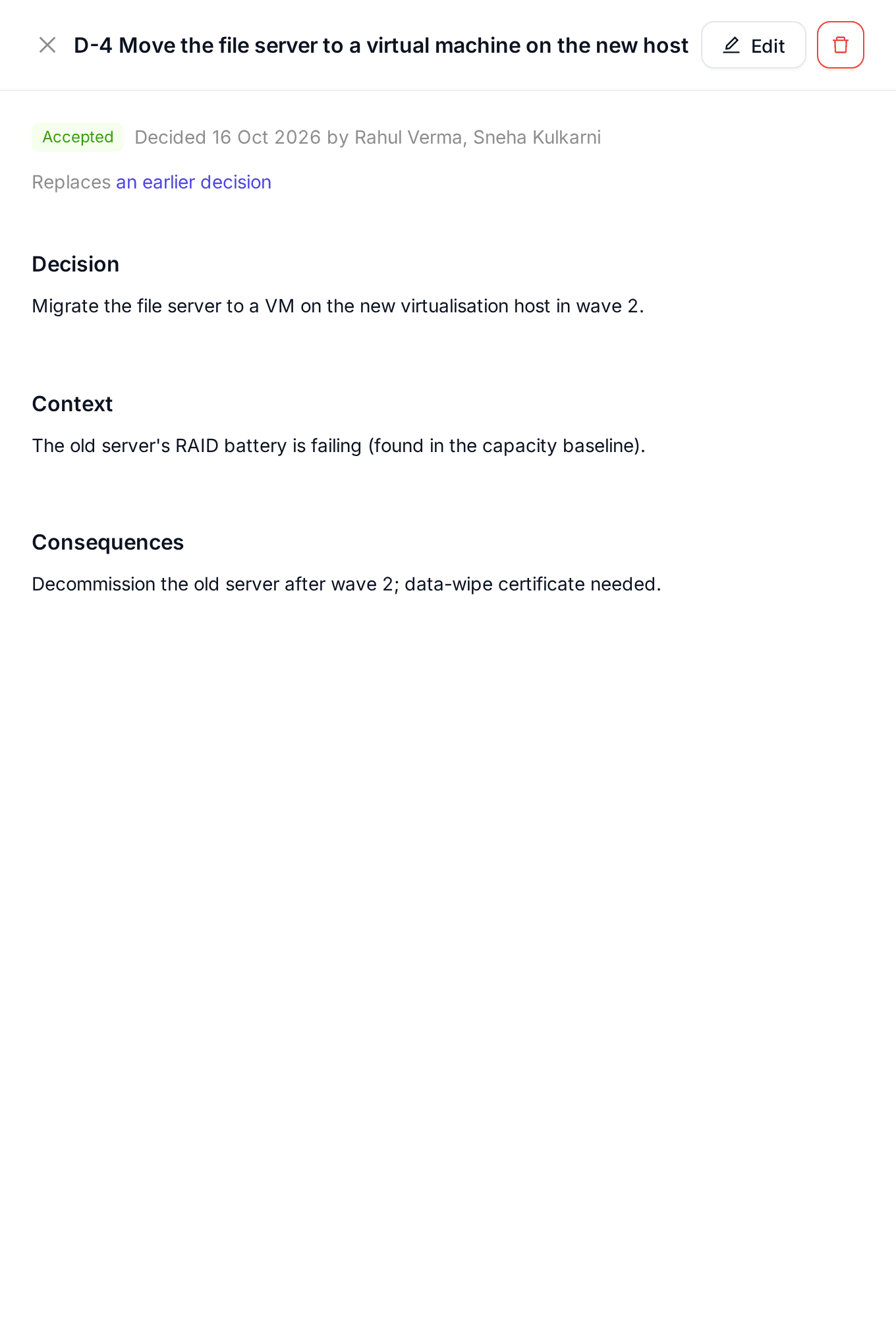
Click a decision to read it in full. It shows the status, who decided and when, each section, the meeting and the related items. A replaced decision shows Replaced by D-N with a link.
Common questions
Do the attendees get an invitation?
They are told about the meeting with a notification in the ERP. It isn't a calendar invitation; send one from your e-mail calendar if you need it.
Can I change a decision after it is recorded?
Yes, open it and click Edit. If the decision itself changed, record a new one that replaces the old one instead. The log then keeps both, which is the point of a decision log.
Can I find old meetings and decisions?
Yes. Use the search on the project's Discussions tab or on the Discussions page. Results include meetings and decisions. See Discussions and announcements.