Backlog and sprint planning
The backlog is the team's ranked to-do list. Put the most important work at the top, size it with story points, then plan the next sprint: the ERP adds up the points and hours and warns you before the team takes on more than it can finish.
Before you start
- You need a team linked to its projects (see Sprints and Scrum teams).
- Anyone with the Plan sprints permission (managers and administrators) can rank the backlog and plan sprints. Creating, starting and completing sprints needs Start, complete and configure sprints. Team members can also set story points.
- Time needed: 30–60 minutes for a planning meeting with the team.
What the backlog shows
Open Projects → Sprints, click the team and choose the Backlog tab. The top of the tab shows the team's average velocity (for example Average velocity 16 points (last 3 sprints)). Below it are the active and planned sprints, and at the bottom the Backlog itself.
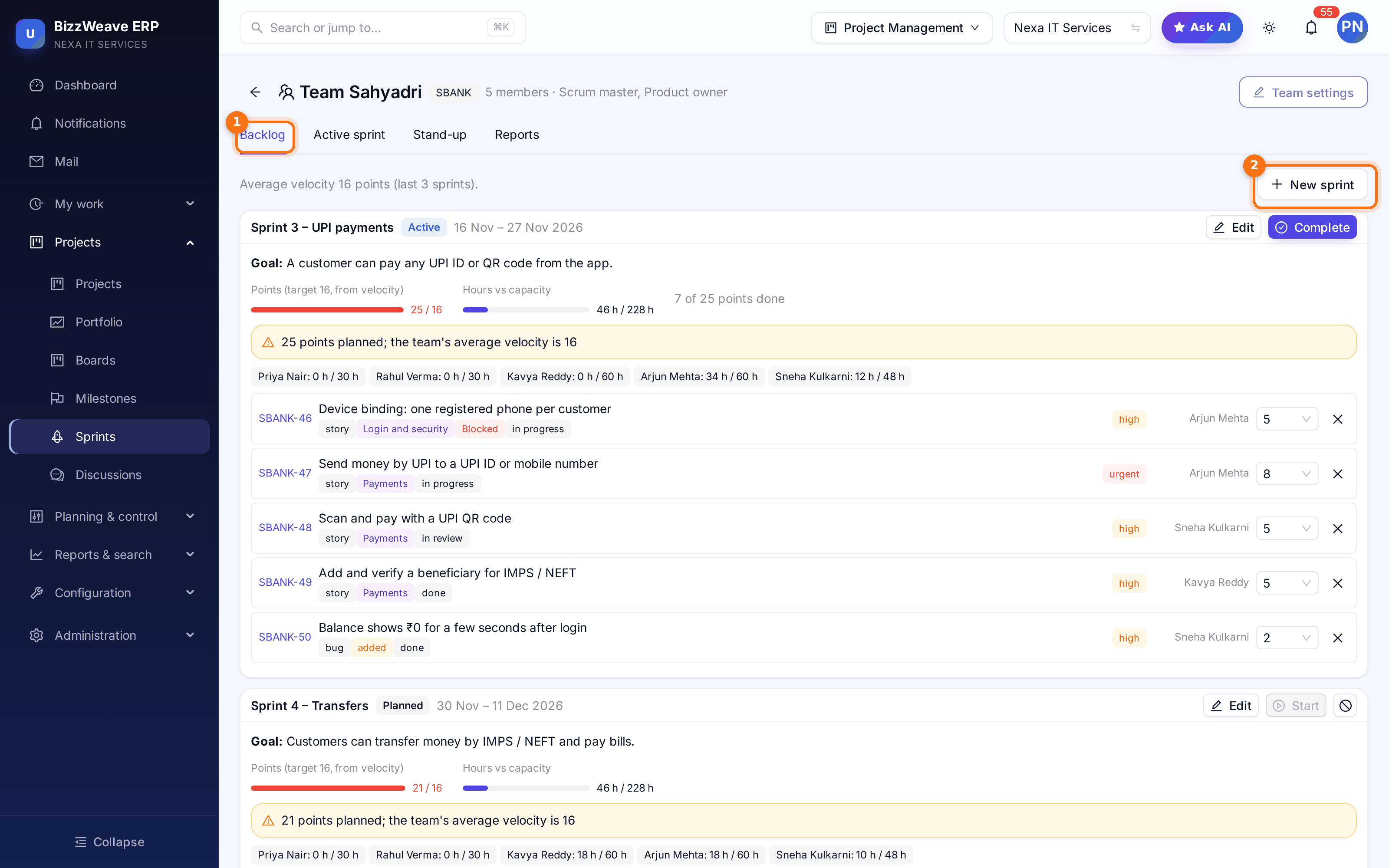
The backlog collects the open work of the team's projects:
- tasks, stories and bugs at the top level of the project, and stories that sit under an epic;
- not phases, epics themselves, subtasks, finished or cancelled work, or work already planned in a sprint;
- not work that another team has taken into one of its sprints.
The list is ordered by rank (the order you drag items into); items you have not ranked yet follow by priority. Up to 500 items are shown.
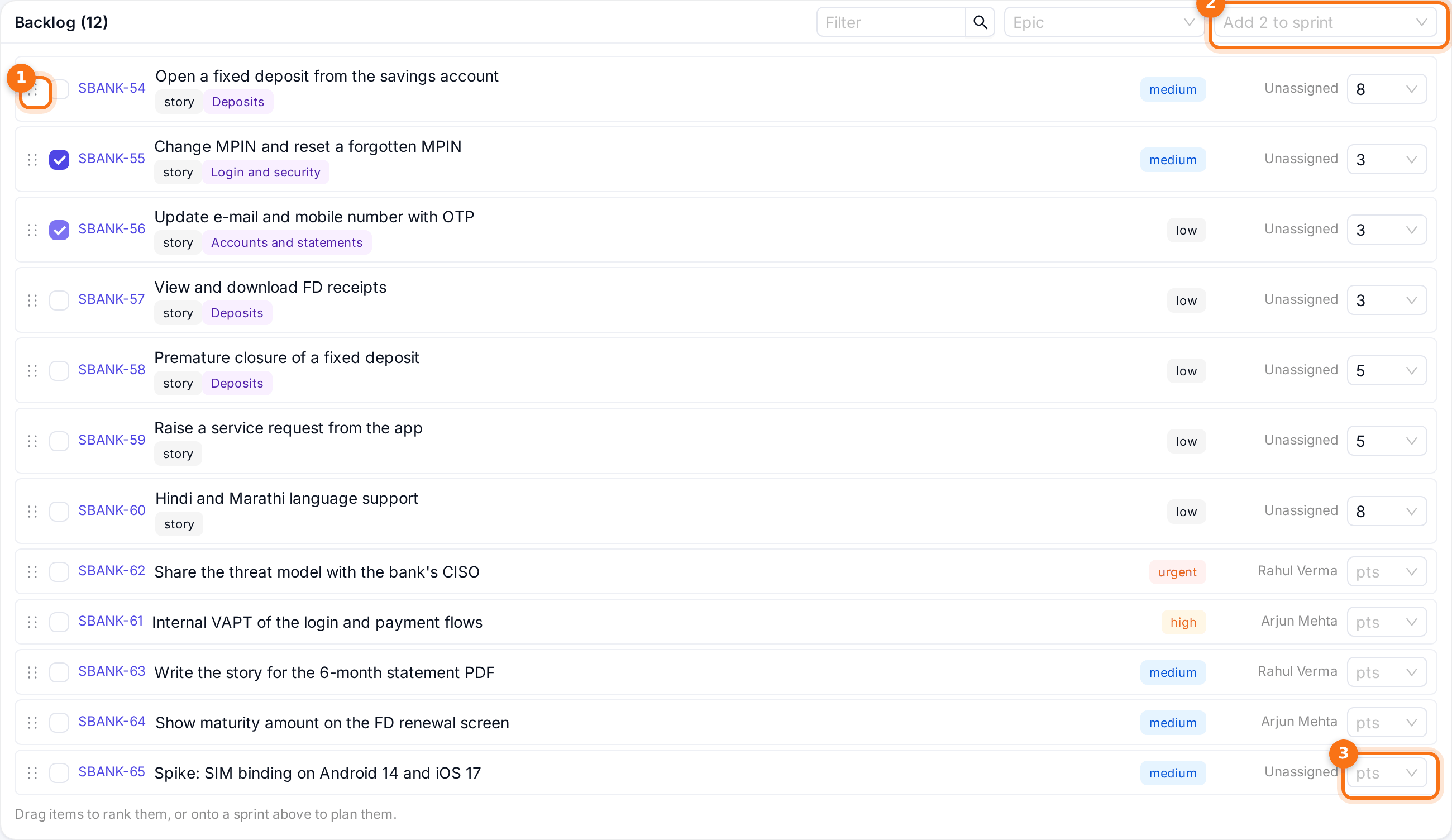
Each row shows the item key (click it to open the item), the title, its type (story, bug), its epic in purple, a red Blocked tag if it is blocked, its priority, the person it is assigned to and its story points.
Use Filter to find items by key or title, and Epic to show only the stories of one epic.
Add stories to the backlog
Stories are ordinary project tasks. Create them on the project's Tasks tab with New task, then set the Type to Story (or Bug) and, if you like, put them under an epic. See Tasks, board and tree. They appear in the team's backlog straight away.
Rank the backlog
- Drag an item by its handle (the six dots on the left) and drop it on the row it should go above. The most important work goes to the top.
- Repeat until the top of the list is what the team should do next. The new order is saved at once and everyone sees it.
Give items story points
Click the small box on the right of a row (it shows pts when the item has no points yet) and choose a number. The usual scale is 0, 1, 2, 3, 5, 8, 13, 21, 40 and 100. Agree the sizes together, for example in a short estimation session: compare each story with one the team already knows (“about the same as the MPIN login, so 3 points”).
You can also enter Story points in the item's own panel.
Estimate hours too
Story points drive the velocity and the burndown. The estimate (in hours) of each item drives the Hours vs capacity bar and the per-person load. Enter both for the best planning picture.
Create a sprint
-
Click “New sprint” at the top right of the Backlog tab.

The New sprint window. -
Fill in the sprint.
Field What to enter Example Name Optional. If empty, the ERP uses the team name and a number, for example Team Sahyadri sprint 5. Sprint 4 – Transfers Sprint goal One sentence on what the sprint should achieve. It is shown on the board and in the report. Customers can transfer money by IMPS / NEFT and pay bills. Dates Start and end date, one to four weeks apart. Leave empty to start the day after the last sprint, with the team's default length. 30 Nov 2026 – 11 Dec 2026 Target points Optional. How many points the team aims for. If empty, planning compares the sprint with the team's average velocity. 16 -
Click “Save”. The sprint appears above the backlog with the status Planned.
Plan the sprint
Move the top items of the backlog into the sprint in one of two ways:
- drag an item from the backlog and drop it on the sprint card; or
- tick several items and choose the sprint in Add N to sprint at the top of the backlog.
To take an item out of a sprint, click the × at the end of its row. It goes back to the backlog.
While you plan, the sprint card checks the plan for you:
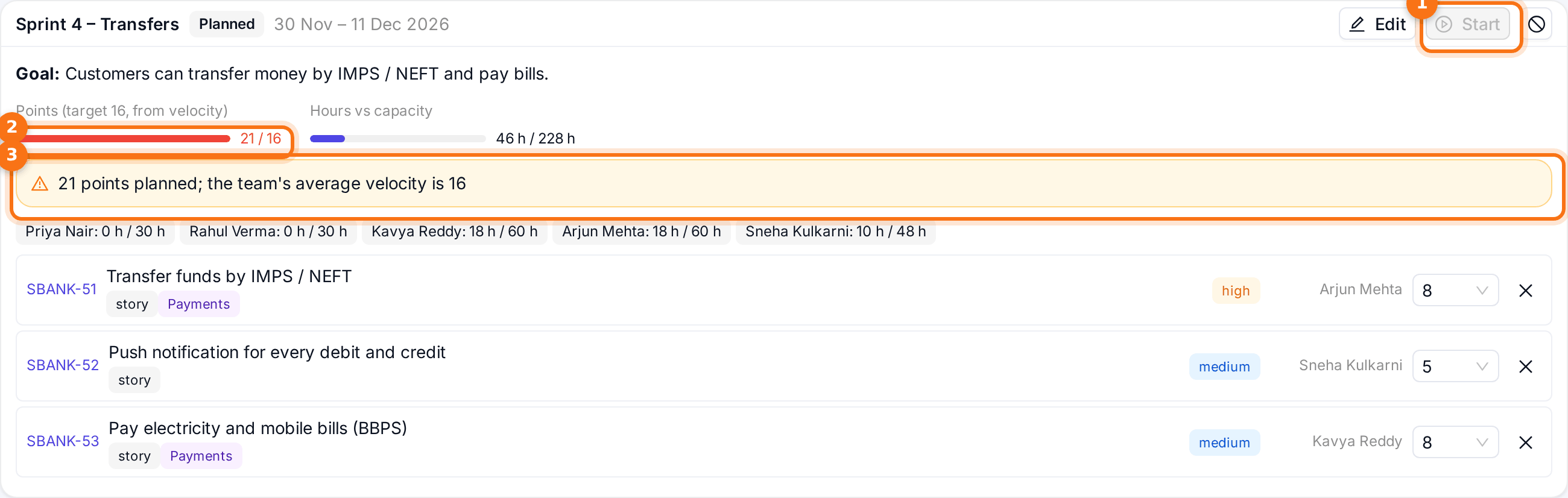
| On the card | What it tells you |
|---|---|
| Points (target …) | The story points in the sprint against the target points, or against the average velocity (from velocity). The bar turns red above the target. |
| Hours vs capacity | The estimated (or remaining) hours of the items against the team's capacity. Capacity is working days × focus hours per day × each member's share: for a two-week sprint, a full-time member at 6 focus hours has 60 h. |
| Person tags | Each member's planned hours against their own capacity, for example Arjun Mehta: 18 h / 60 h. A red tag marked over means the person has more work than time. People who are not in the team but have work in the sprint also show up in red. |
| Warnings | Too many points for the target or velocity (more than 10% above the average), more hours than the capacity, a member who is overloaded, and items without story points. |
The warnings don't stop you; they help the team agree a realistic plan.
Start the sprint
When the team agrees the plan, click Start on the sprint card. Only one sprint per team can run at a time, and the sprint needs at least one item.
What happens next
The sprint becomes Active. The points in it at this moment are recorded as the committed points, and the Scrum board opens on the Active sprint tab. Items added later are marked added (a scope change) and listed separately in the sprint report.
Change or cancel a sprint
- Edit on the sprint card changes the name, goal, dates and target. The start date of a running sprint can't change; you can still move its end date.
- The stop icon on a planned sprint cancels it; its items return to the backlog. A sprint that has started can't be cancelled, only completed.
Complete the sprint
On the last day, after the review and retrospective:
-
Click “Complete” on the active sprint card.
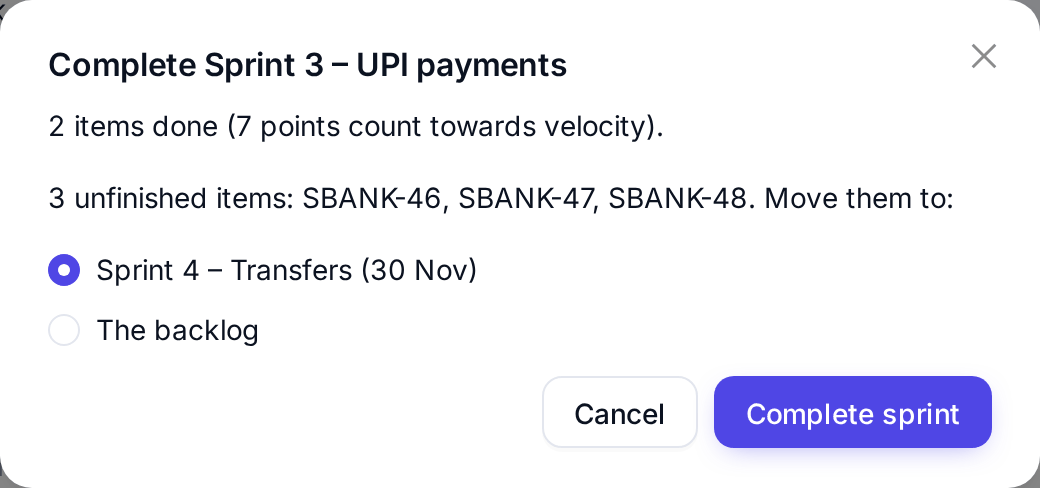
Two items are done (7 points count towards velocity); three unfinished items move to the next sprint. -
Choose where the unfinished items go: a planned sprint of the same team, or The backlog.
- Click “Complete sprint”.
What happens next
Only items that are Done count as completed and make up the sprint's velocity. Unfinished items are recorded as carried over. The sprint moves to the Reports tab, where its report stays available. You can now start the next sprint.
Common questions
An item doesn't appear in the backlog
Check that it is open, that its project is one of the team's projects, and that it is not already in a planned or active sprint. Subtasks, phases and epics never appear: plan the story, not its subtasks.
Why is Start greyed out?
Another sprint of the team is still active (complete it first), or the sprint has no items yet.
Can I add work after the sprint has started?
Yes, drag it onto the active sprint. It is marked added and counted as a scope change in the report, so everyone can see that the plan changed.
Where does the average velocity come from?
It is the average of the completed points of the team's last three completed sprints. Until the first sprint is completed, the Backlog tab says Velocity appears after the first completed sprint.