The calendar
The calendar shows a month at a time: the due date of every compliance task and your own events, such as a GST hearing or a meeting with a client. Use it to see busy weeks coming and to plan the team's work.
Before you start
- Everyone who can see compliance tasks can open the calendar.
- To add events you need the Member role or higher.
- Time needed: 2 minutes.
Open the calendar
Click Work → Calendar. With CA ERP chosen, the calendar shows only CA dates.

- Task entries (light blue) show the task number. They turn red when the task is overdue.
- Events (pink) are your own entries, such as hearings and meetings.
- Today has a blue border. Days of the previous and next month are faded.
- A day shows up to four entries; hover over +N more to see the rest.
- Hover over any entry to see the client and the full title. Click a task to open its panel, where you can work on it as on the task list. Click an event to edit it.
Choose what you see
| Control | Choices |
|---|---|
| Due date / Start–end / Completed 1 | Due date: each task on its due date. Start–end: each task across every day from its start date to its end date (set in the task's details). Completed: each finished task on the day it was marked done. |
| Everything I can see / Mine | Mine shows only your own tasks. |
| ‹ month › | The arrows move a month back or forward. Click the month's name to come back to the current month. |
Add an event
Events are reminders that are not compliance tasks, for example GST hearing: Patel & Associates (ASMT-10 notice).
- Click Add event 2.
-
Enter the Title (required), the Date (required) and a Note if you like.
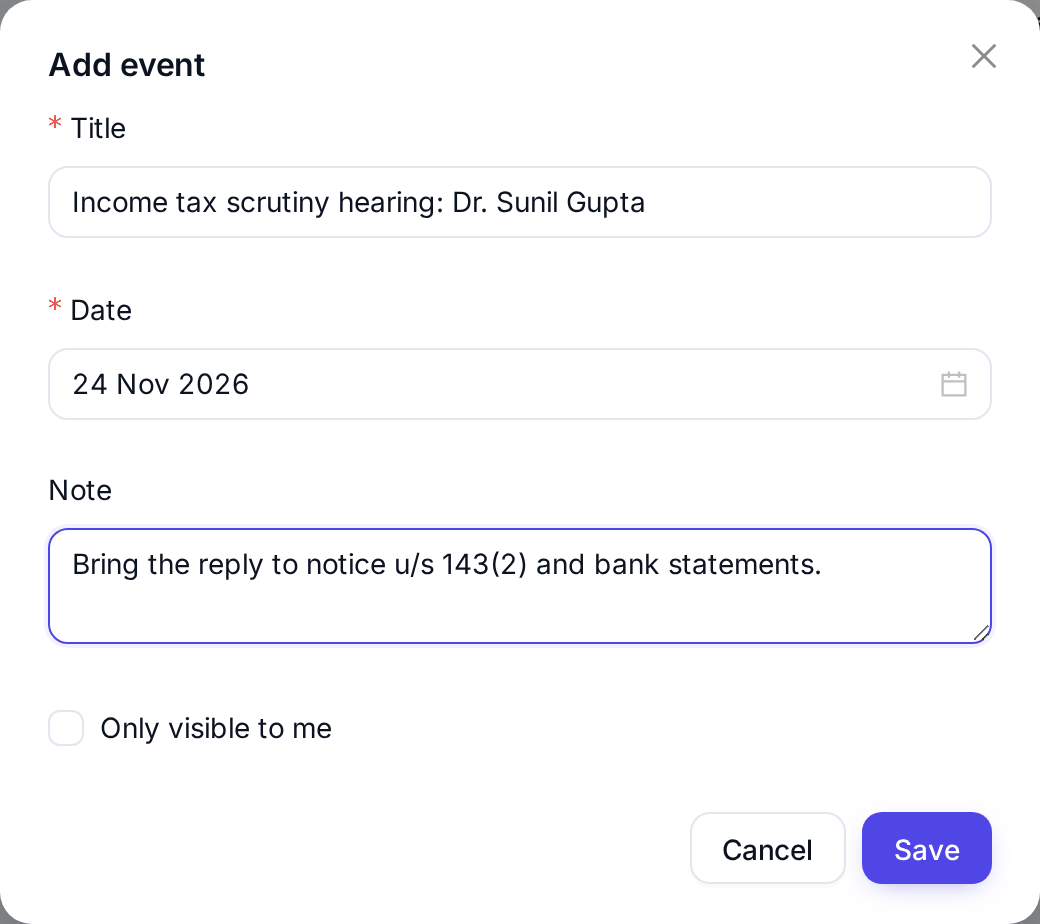
An income tax hearing for a client. -
Tick Only visible to me for a private reminder. Otherwise everyone in the firm sees it.
- Click Save.
To change or remove an event, click it on the calendar, then click Save or Delete.
Common questions
A task's start–end shows only one day
The task has no start and end date. Set them with Edit details in the task. See Inside a task.
Can I see the calendar in Google Calendar or Outlook?
Not for CA tasks. The calendar is shown in BizzWeave ERP only.